Create Custom Questions
There are three types of custom question fields that can be added: dropdown, multi-select, and free form.
These allow users to add optional custom fields to the Lead form and capture event-specific data, such as badge type, breakout sessions, or survey responses.
The answers to these questions are then exported to Salesforce along with the related Lead record.
Start Here
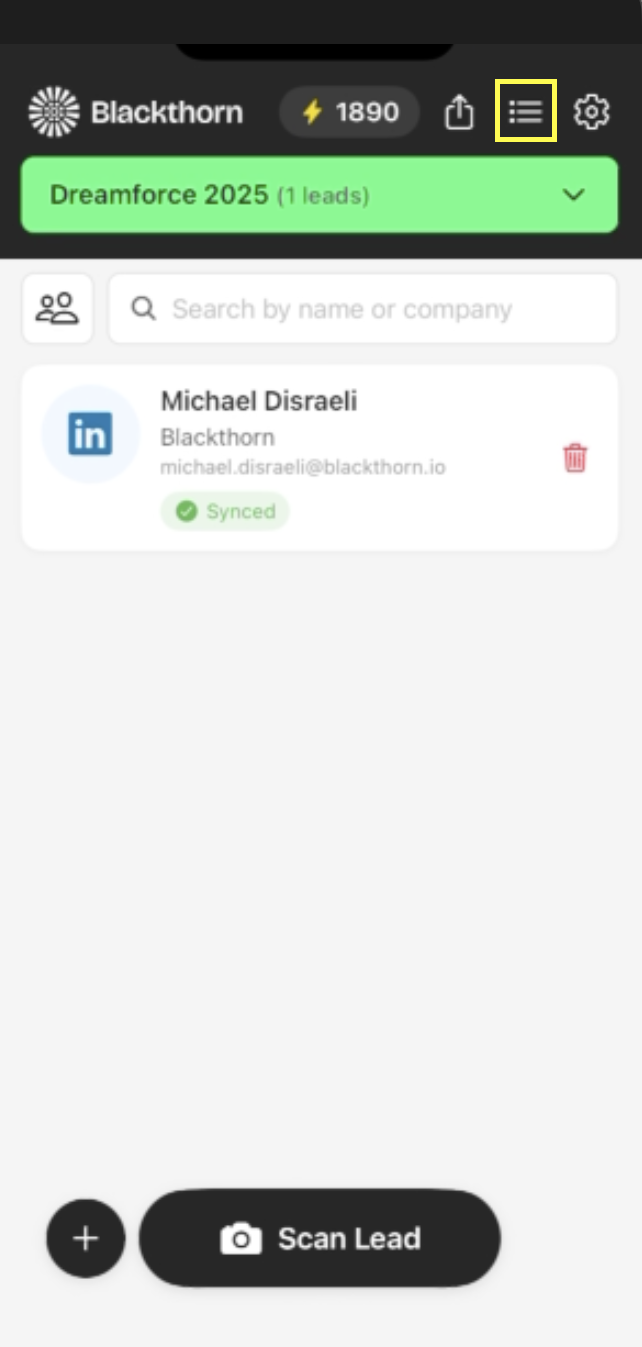
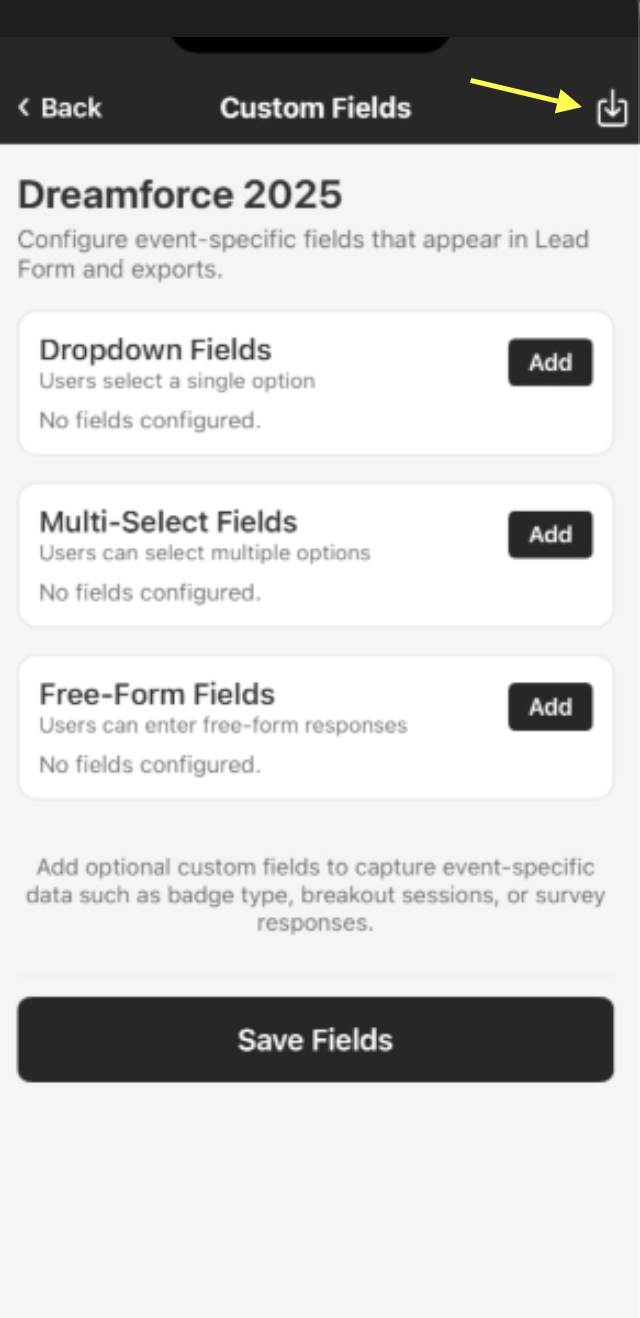
Click the  icon at the top of the screen to open the Custom Fields screen.
Add a Dropdown Field
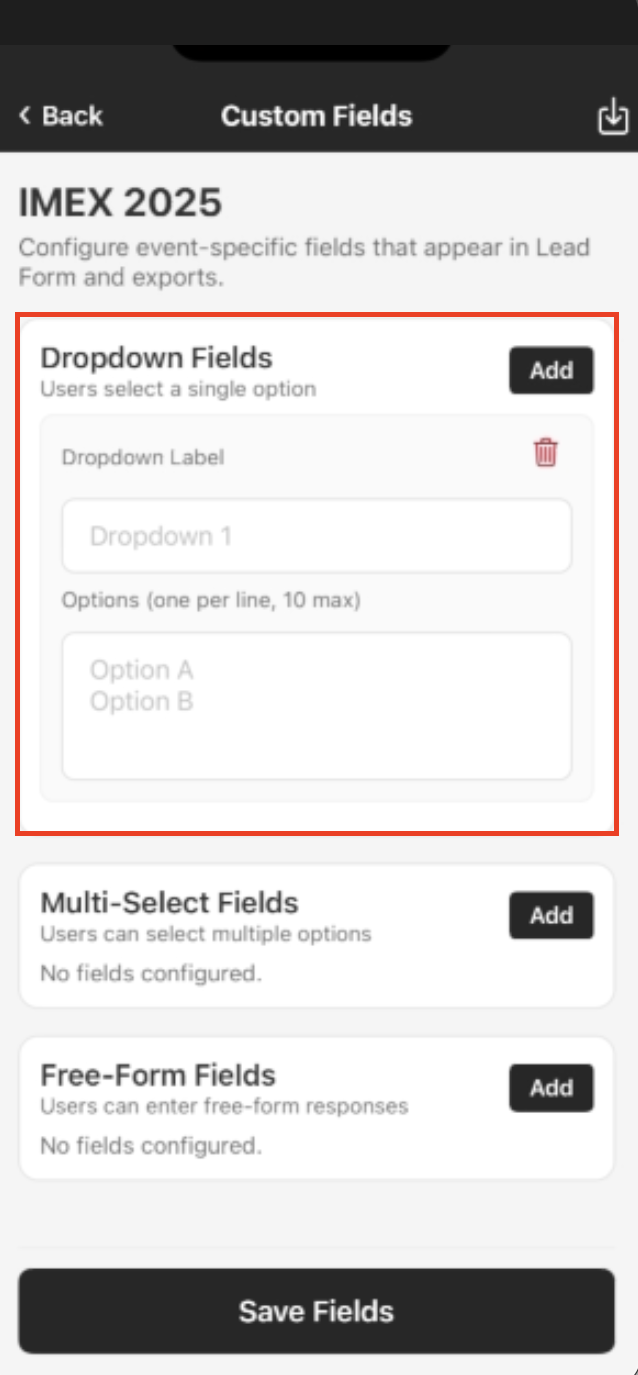
Click Add in the Dropdown Fields box.
Enter a Dropdown Label.
Enter two or more options.
To add a second question in the Dropdown Fields section, click the Add button again and fill in the fields.
If you need to add Multi-Select or Free-Form questions, click Add in the appropriate section, then complete the steps below. Don’t click Save Fields yet.
If you don’t need to add any of the other question types, click Save Fields.
Add a Multi-Select Field
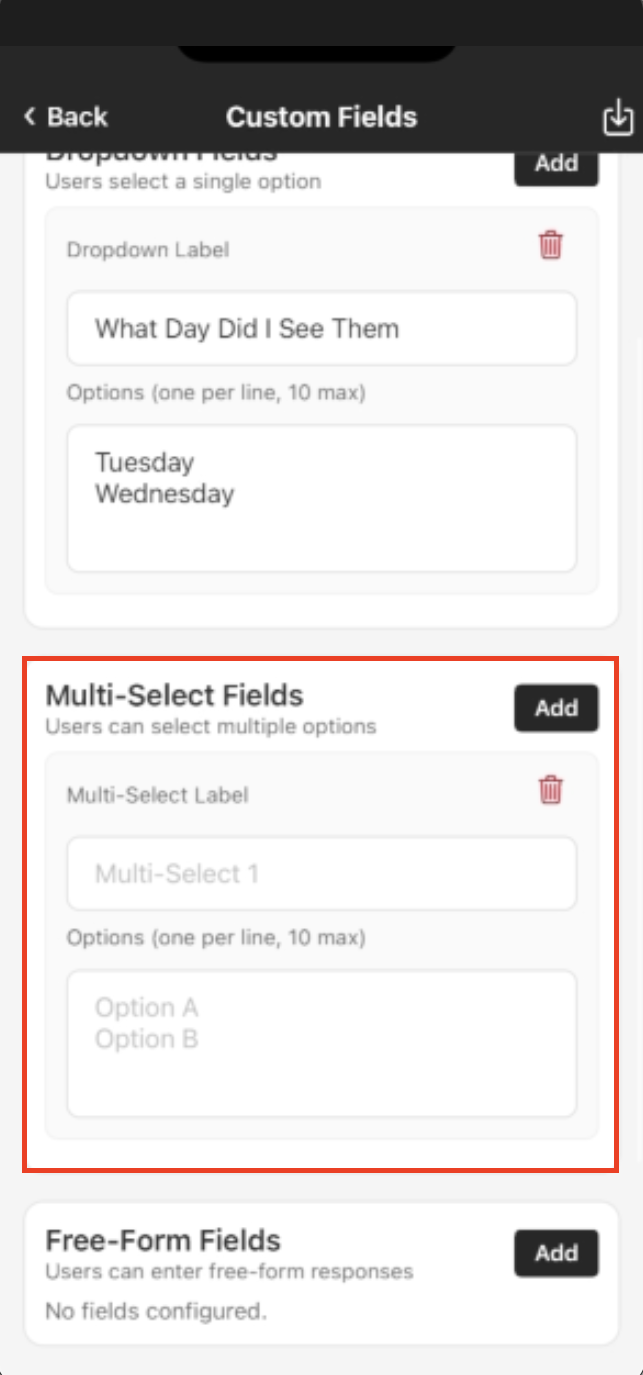
Click Add in the Multi-Select Fields box.
Add a Multi-Select Label.
Enter two or more options.
To add a second question in the Multi-Select Fields section, click the Add button again and fill in the fields.
If you need to add Dropdown or Free-Form questions, click Add in the appropriate section, then complete the steps for that type. Don’t click Save Fields yet.
If you don’t need to add any of the other question types, click Save Fields.
Add a Free-Form Field
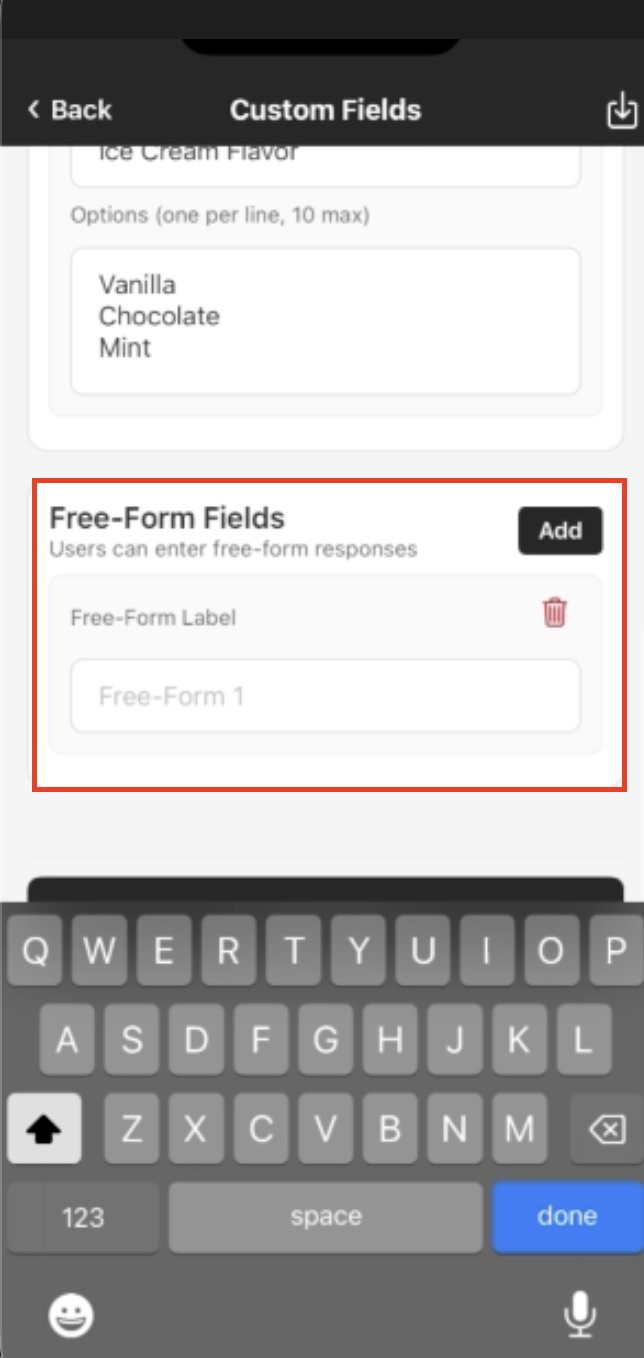
Click Add in the Free-Form Fields box.
Add a Free-Form Label.
To add a second question in the Free-Form Fields section, click the Add button again and fill in the fields.
If you need to add Multi-Select or Dropdown questions, click Add in the appropriate section, then complete the steps for that type. Don’t click Save Fields yet.
If you don’t need to add any of the other question types, click Save Fields.
Updates to the Lead Screen
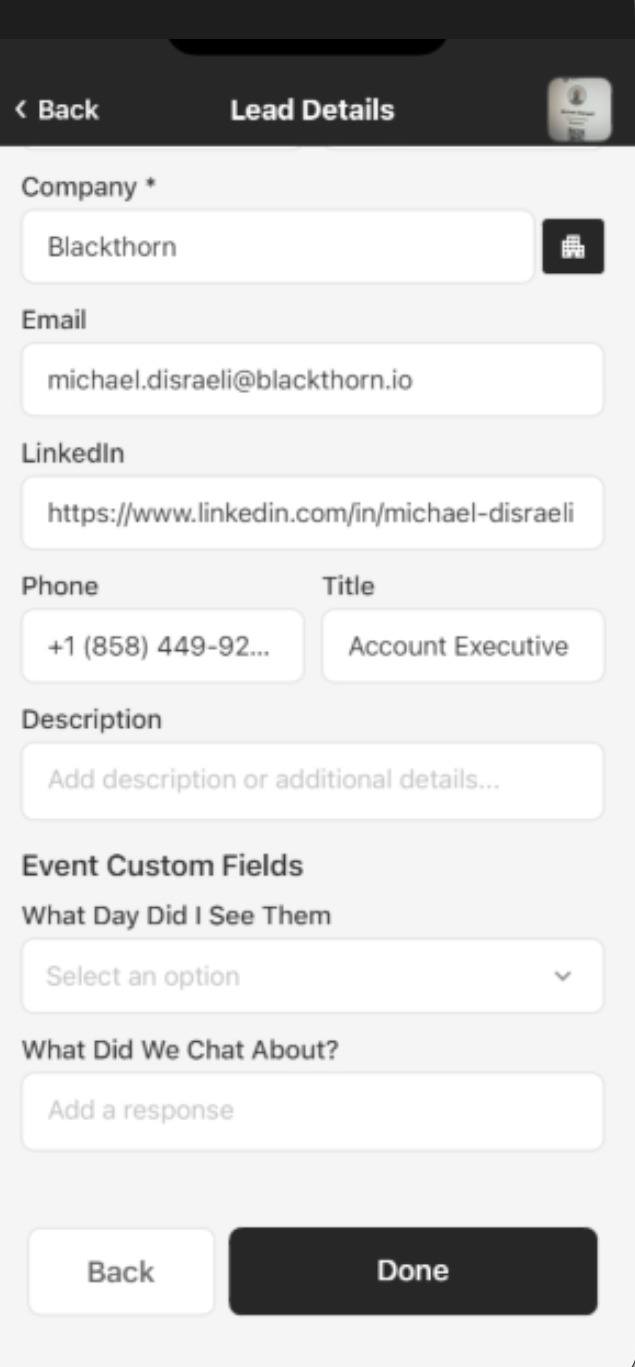
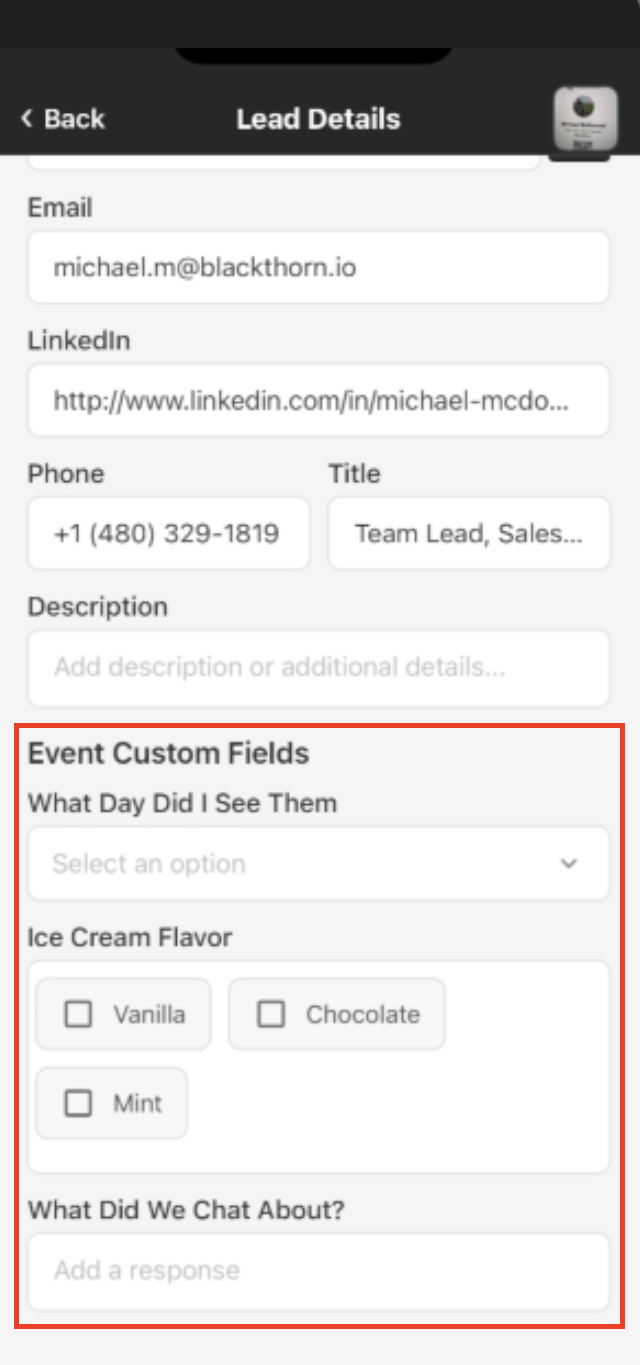
Once Custom Questions are added to a Smart Capture event, they will automatically appear when a user adds a new lead.
For example, after scanning a lead’s business card, you will see the Custom Question fields at the bottom of the screen.
Delete Custom Questions
Click the
icon at the top of the screen to open the Custom Fields screen.Click the Trash Can icon next to the question you want to delete.
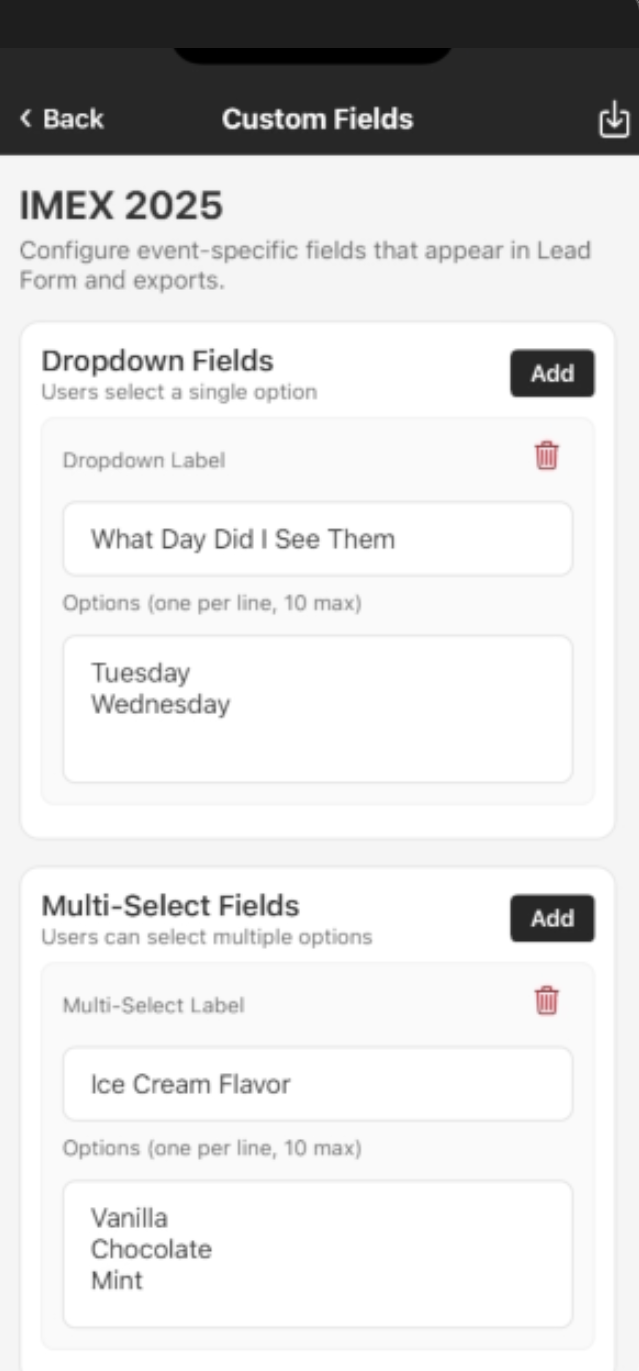
Click Remove.
Click Save.
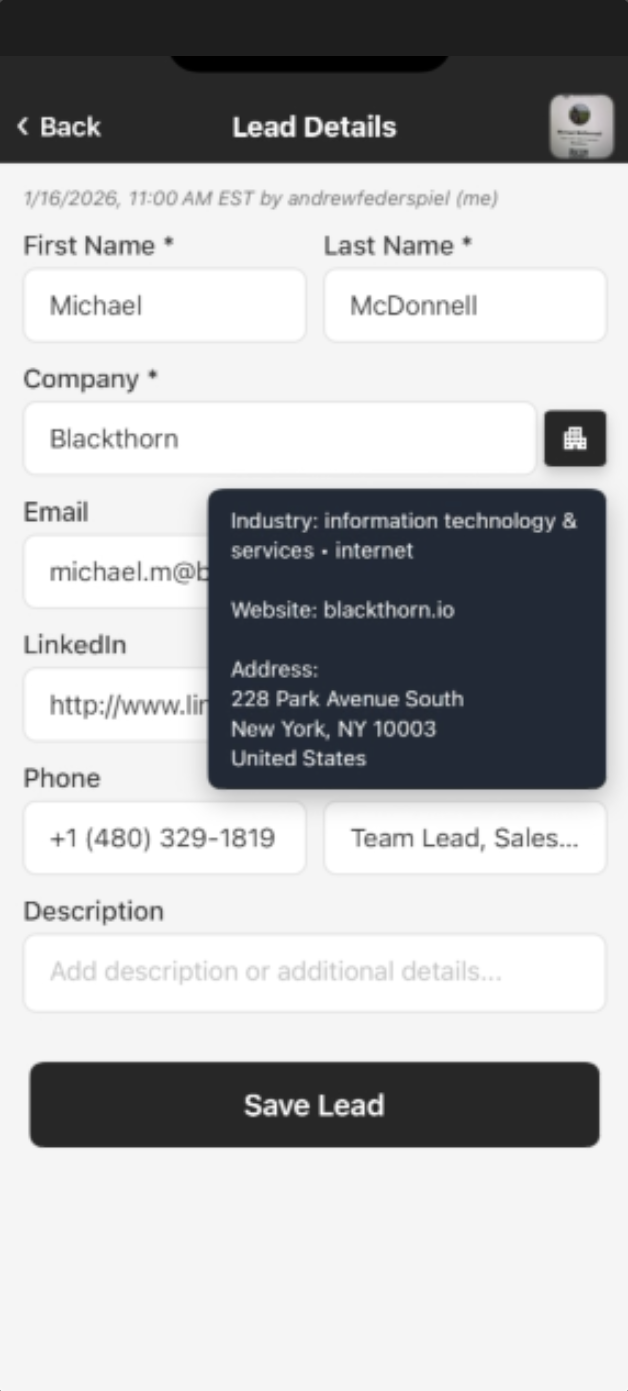
When you go back to a lead’s screen, you will see that the questions have been deleted.
Share Custom Question Fields Between Events
If a previous Smart Capture event contains a set of Custom Question fields you want to use for a new event, you can share those fields between the two events.
Select the event that contains the Custom Question fields you want to copy.
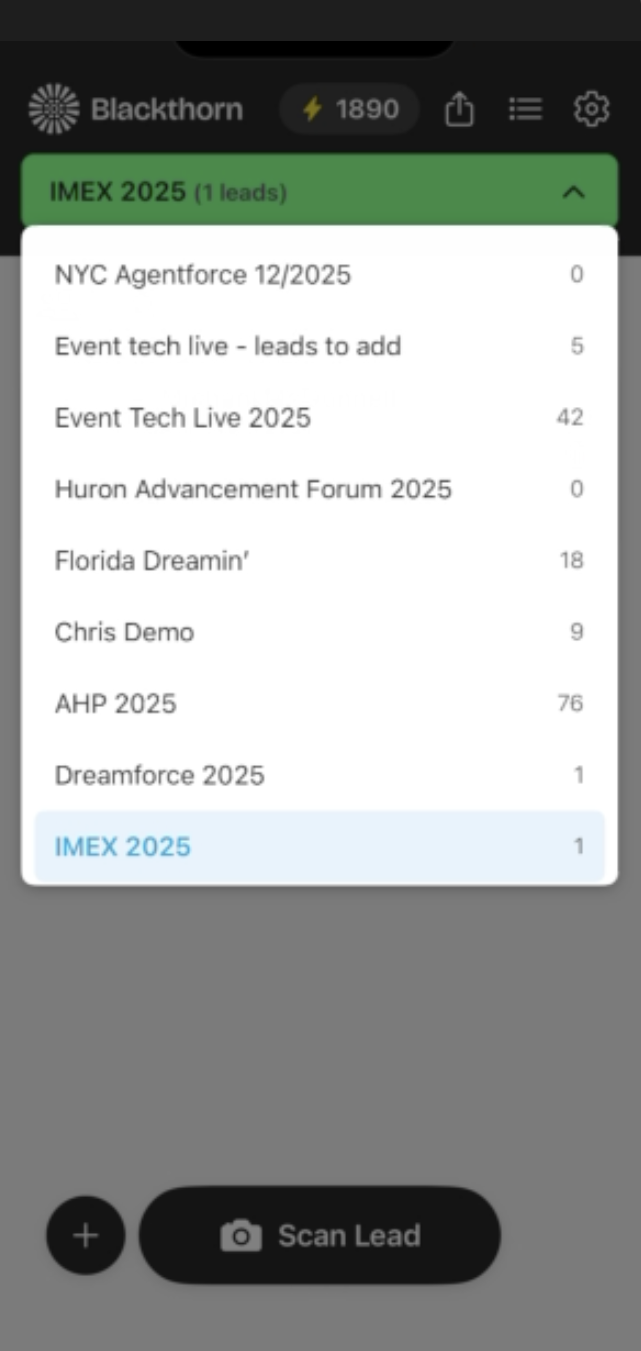
Click the
icon at the top of the screen. Click the Share icon in the top-right corner of the screen.
Click the event.
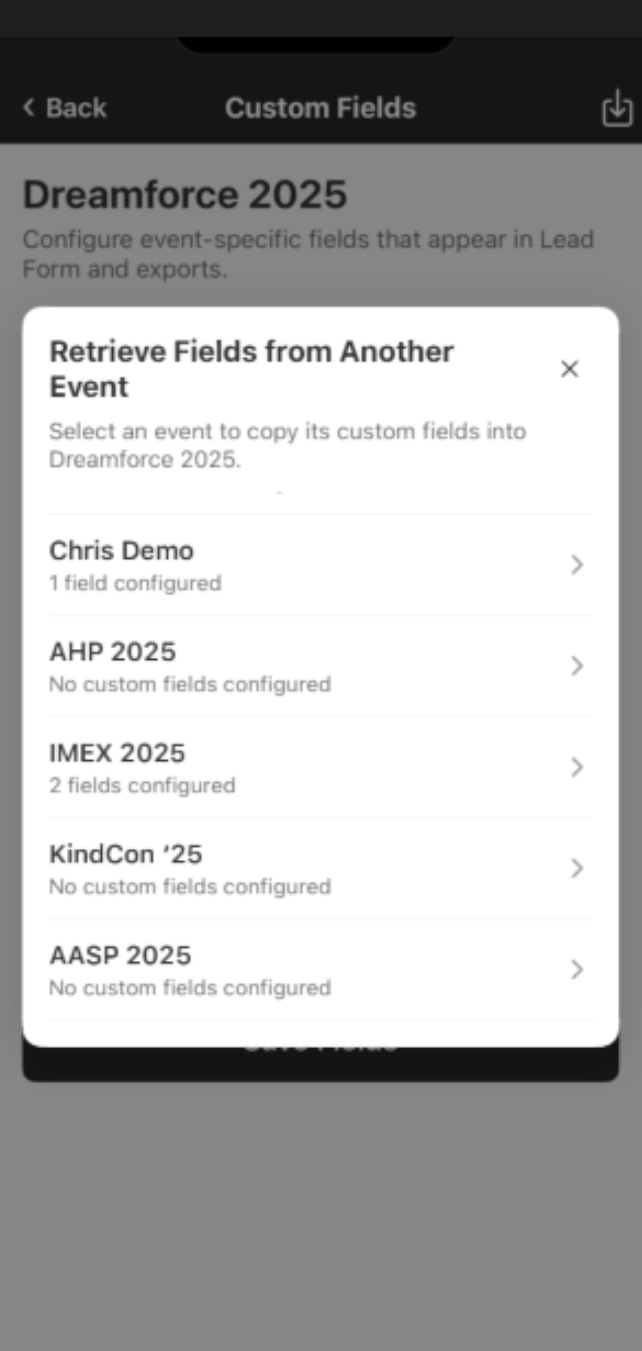
Click Yes.
You can now see the Custom Question fields in the new event.