Once you are connected to Stripe, it’s time to configure webhooks, which automatically send specific data from Stripe to Salesforce.
What are some benefits of using webhooks?
Update a card on file with recent changes to the credit card information.
Send Payouts to Salesforce (reconciliation).
Create Disputes in Salesforce after capturing Transactions.
Send updates about deleted Payment Gateway Customers or Payment Methods.
Maintain consistency across all records by sending data from Stripe to Salesforce.
Prerequisite
You must have Salesforce administrator access to Salesforce and Stripe to complete the following instructions.
Create a Force.com Domain
- Go to Setup.
- In the Quick Find box, enter “Sites and Domains.”
- Click “Sites.”
- Enter a value for your Force.com domain.
- Click Check Availability.
- Review and accept the Site terms of use.
- Click Register My Force.com Domain.
Configure Your Site
Go to Setup.
In the Quick Find box, enter “Sites and Domains.”
Click “Sites.”
Click New.
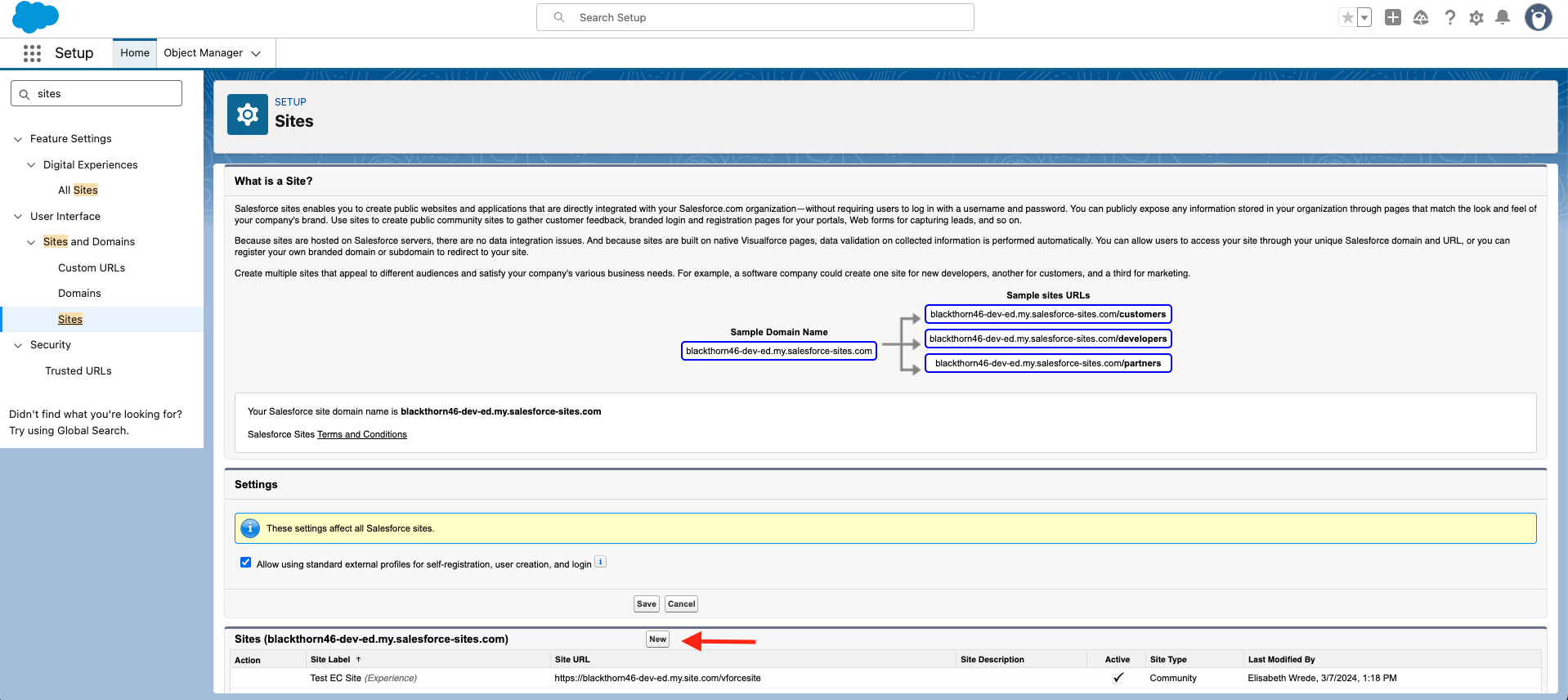
Enter a Site Label, Site Name, and a Default Web Address. (We suggest using "webhook" or "stripe" for the Site Label and Site Name.)
Set Active = "TRUE" (checked).
For the Active Site Home Page field, click the Lookup icon and select "InMaintenance". (The page is not visible. It's just a placeholder because a value is required).
Click Save.
Change the Default Record Owner for Webhook Events
- Go to Setup.
- in the Quick Find box, enter and click “Sites.”
- Click Edit next to your webhook site.
- Change the Default Record Owner to a user of your choice.
- Click Save.
Assign the Site Guest User Permission Set
Navigate back to the Site you created.
Click Public Access Settings.
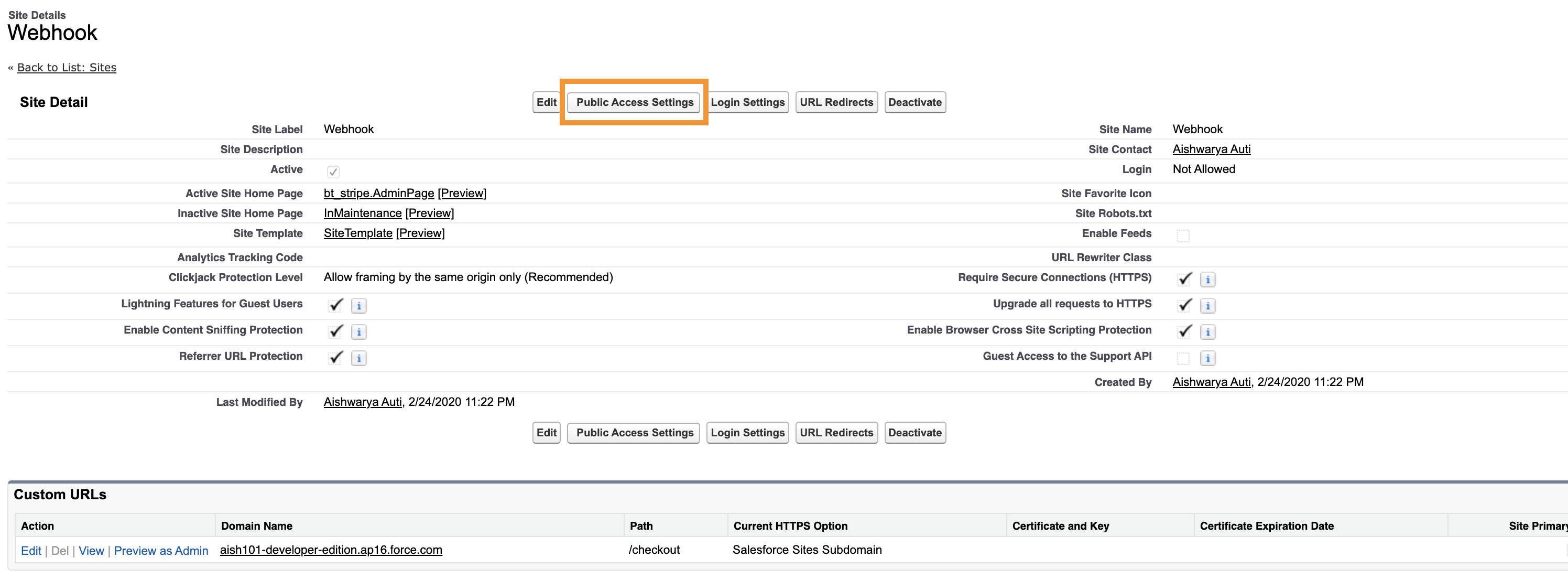
Click the View Users or Assign Users button.
Click the link for the site guest user.

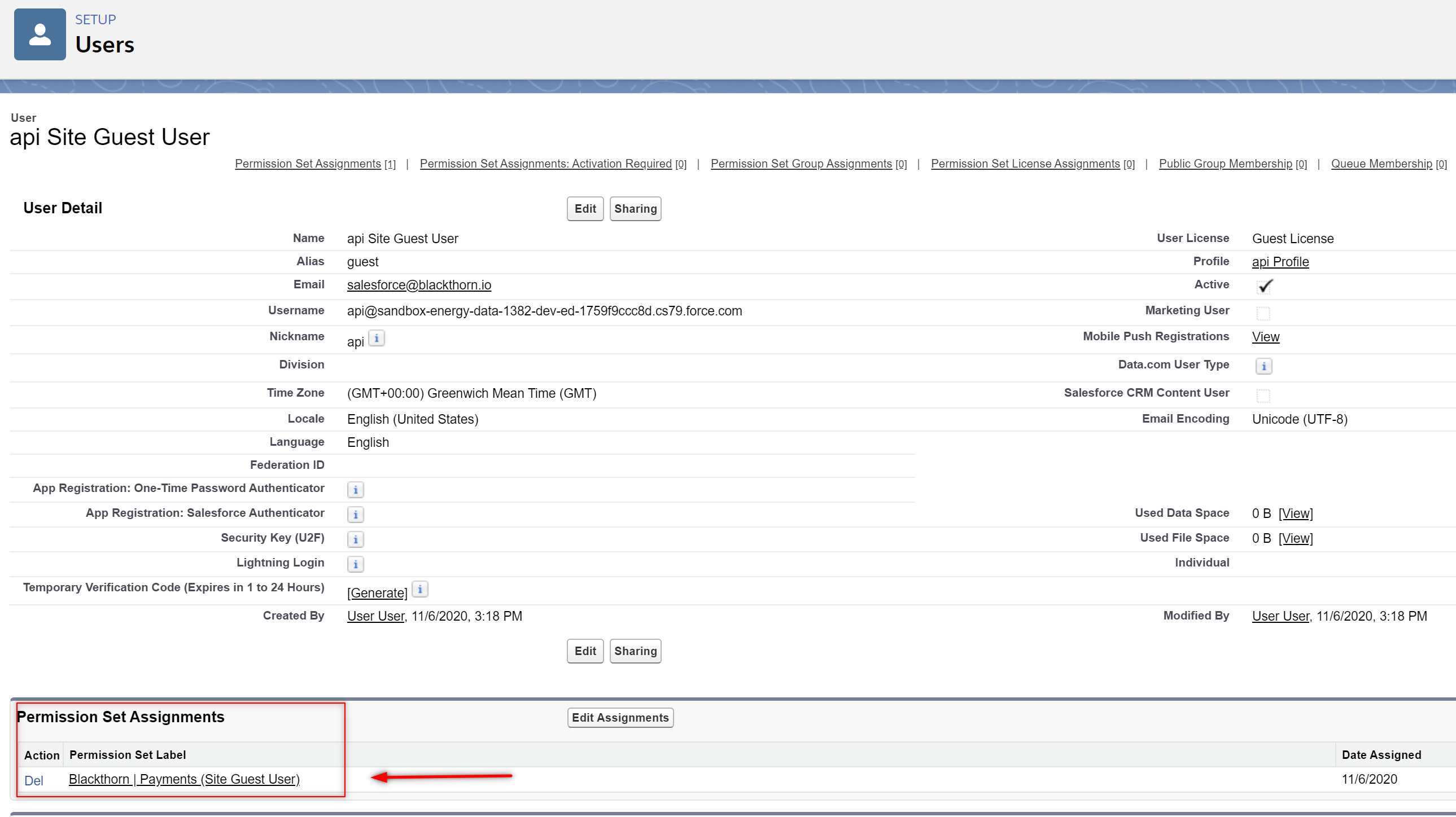
Add the Blackthorn | Payments (Site Guest User) permission set to this user's record.
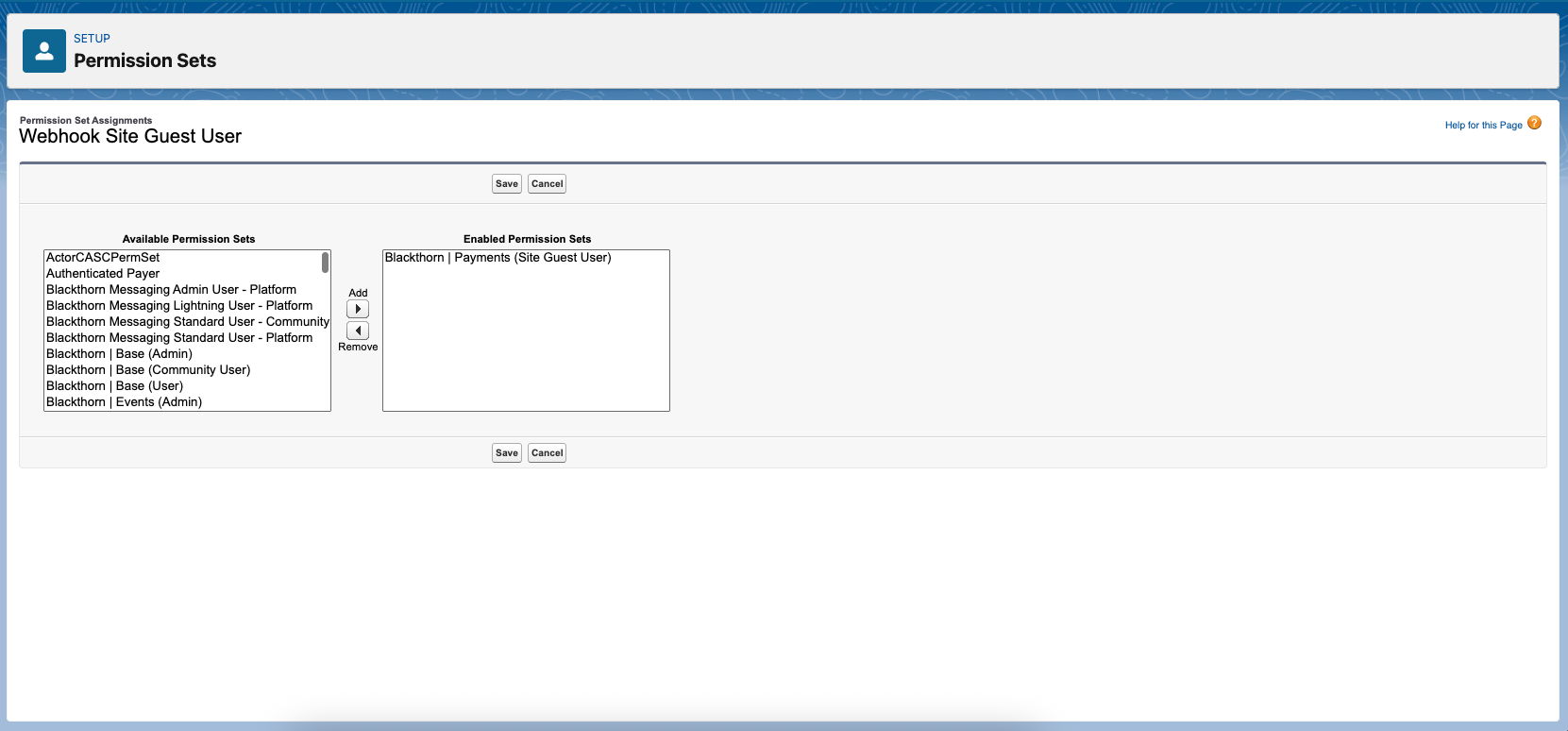
Click Save.
Configure Webhooks in Stripe
In this section, you will gather the different components that will make up the URL before adding it to Stripe.
The URL will have the following format: https://SITE_DOMAIN_NAME/SITE_PATH/services/apexrest/bt_stripe/webhook/WEBHOOK_LABEL
SITE_DOMAIN_NAME = The Salesforce Domain Name for the Site you set up
SITE_PATH = The Path for the Site
WEBHOOK_LABEL = The value in the Payment Gateway Webhook Label field
“services/apexrest/bt_stripe/webhook” remains the same
Create a Salesforce Webhook Site URL
Go to Setup.
In the Quick Find box, enter “Sites and Domains.”
Click “Sites.”
Locate the site you just created and click the URL.
Copy the URL.
Replace “SITE_DOMAIN_NAME/SITE_PATH” with the copied URL.
Leave “services/apexrest/bt_stripe/webhook” as is.
Open the related Payment Gateway record.
Copy the value in the Webhook Label field.
Replace “WEBHOOK_LABEL” with the copied value from the Webhook Label field.
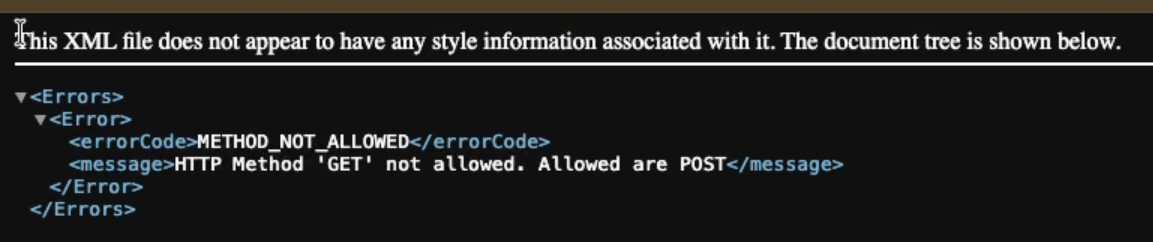
To verify that the new URL works, open a new browser tab and paste the URL. You will see the following message.
Configure the URL in Stripe
Go to your Stripe dashboard. When you create a Webhook URL for your Stripe account in test mode, ensure the "Viewing test data" switch is enabled.
Click the Developers tab at the bottom-left side of the screen.
Click Webhooks.
Click + Add destination to add a destination.
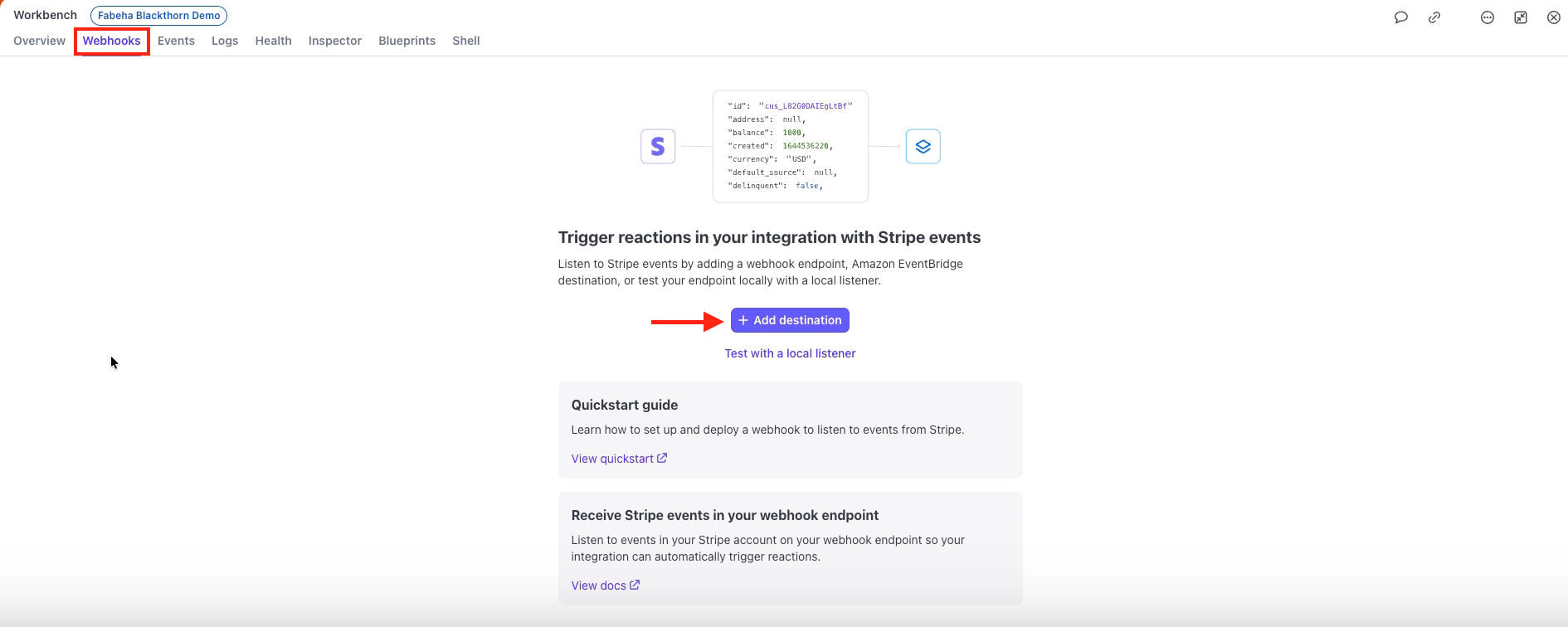
Click Your account.
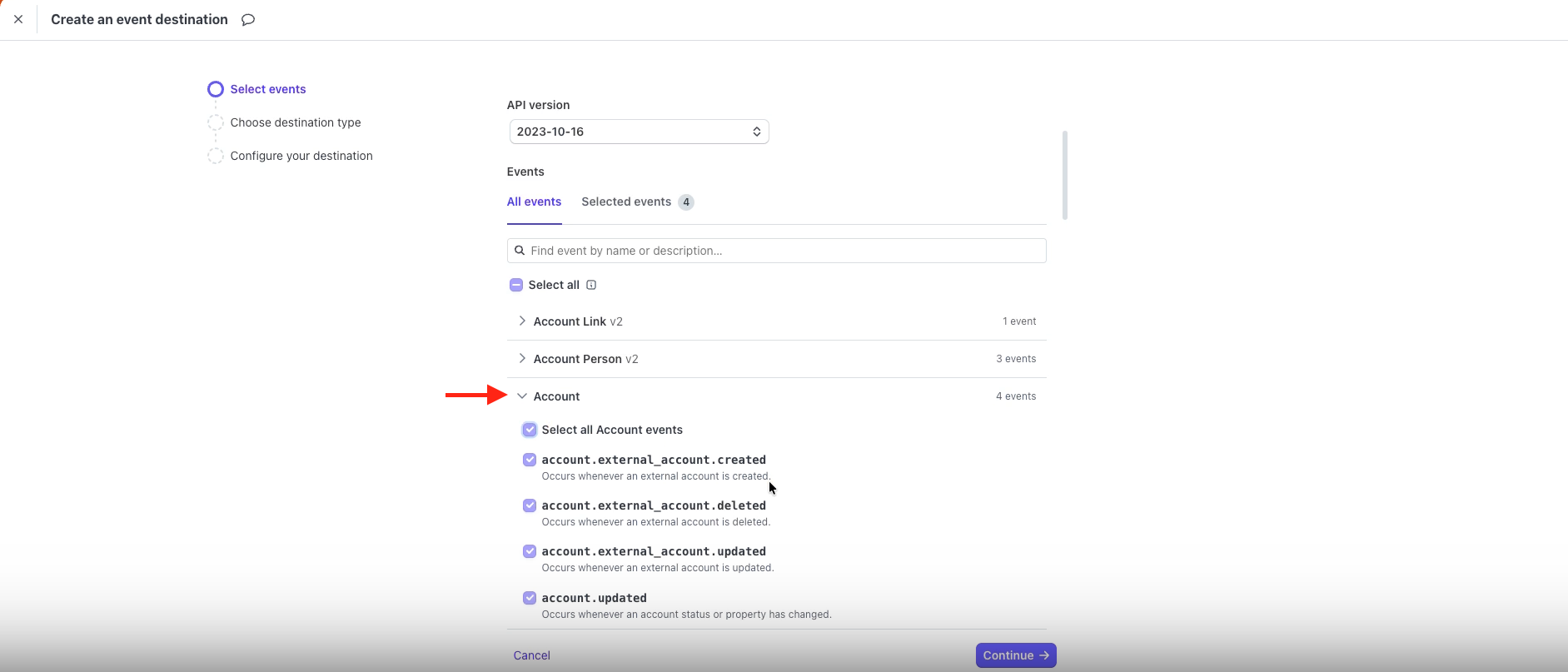
Click into the Account section.
Check the Select all Account events option.
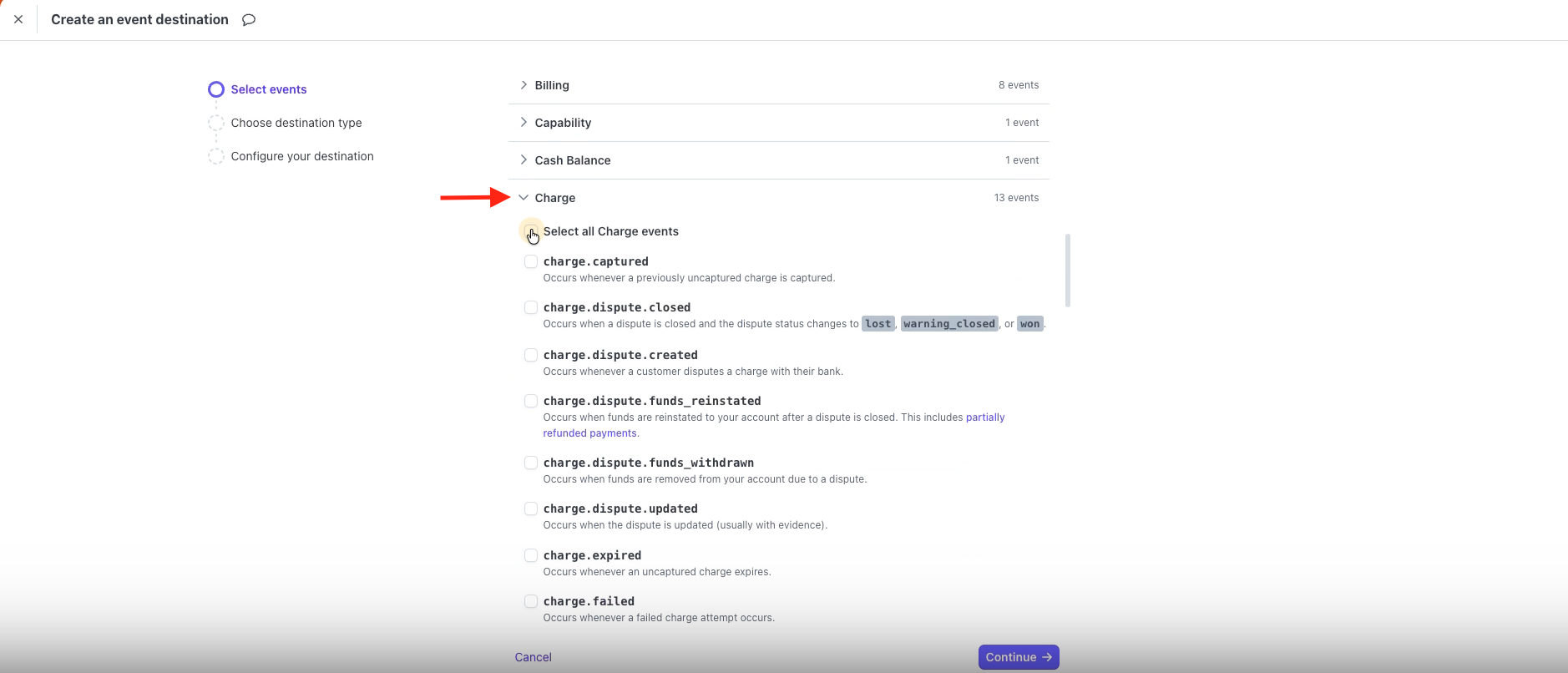
Scroll down to and click into the Charge section.
Click the Select all Charge events option.
Click into the Checkout section.
Check the options that are relevant to your use case.
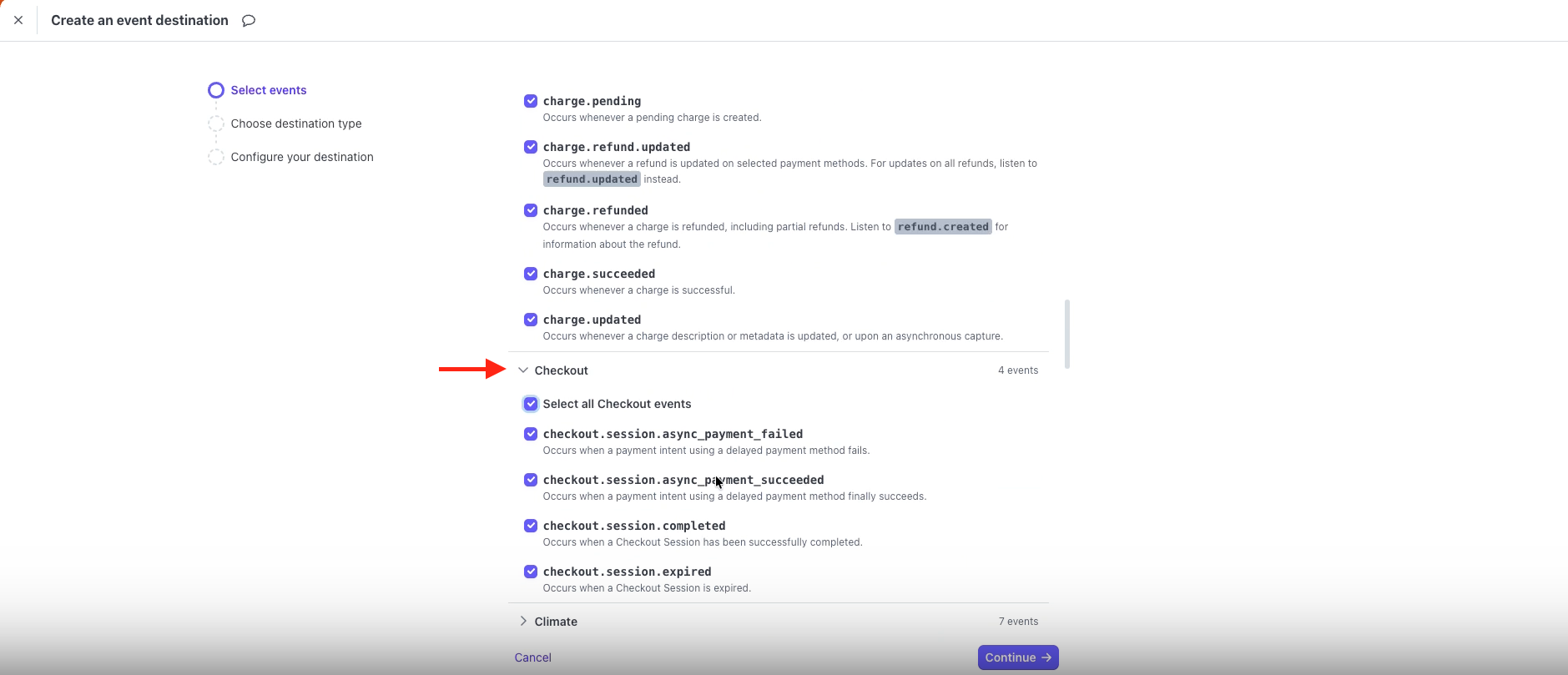
Scroll down to the Invoice section.
Check the Select all Invoice events option.
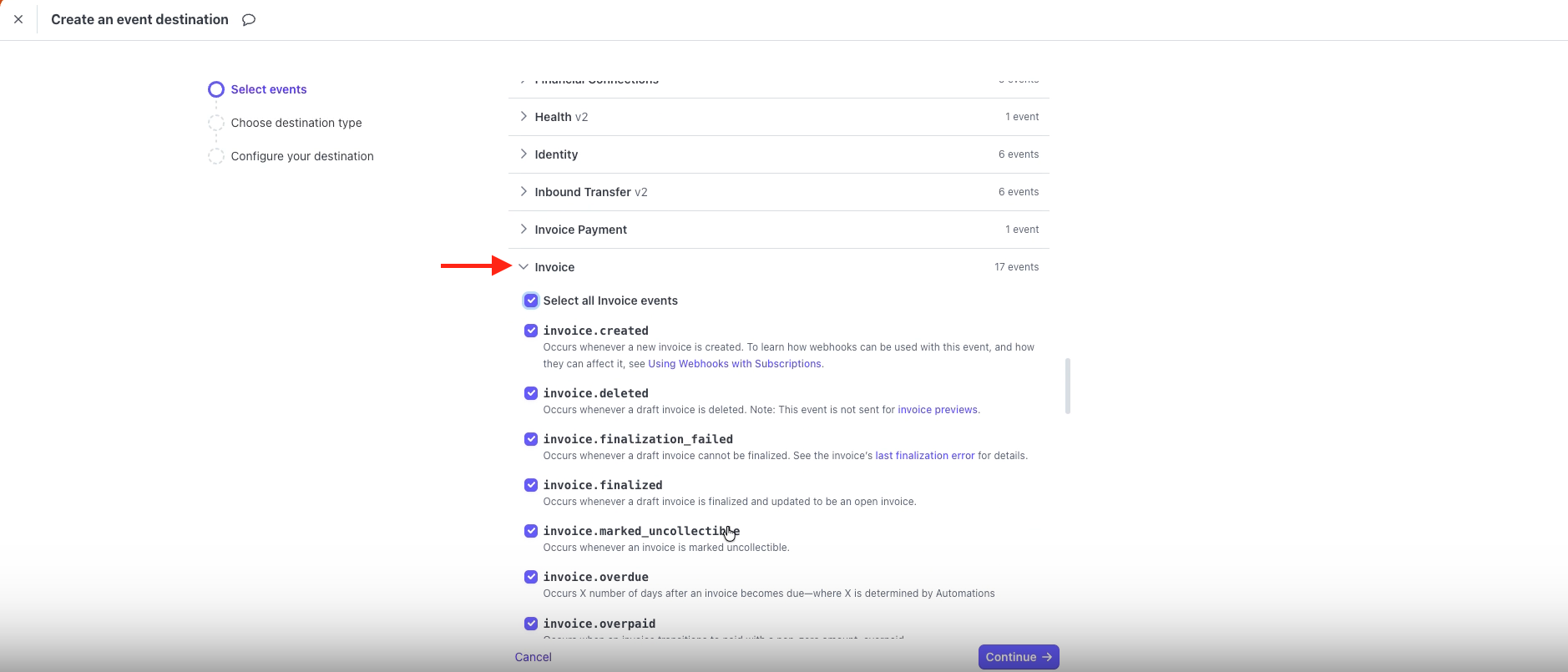
Scroll down to the Payment Method section.
Check the Select all Payment Method events option.
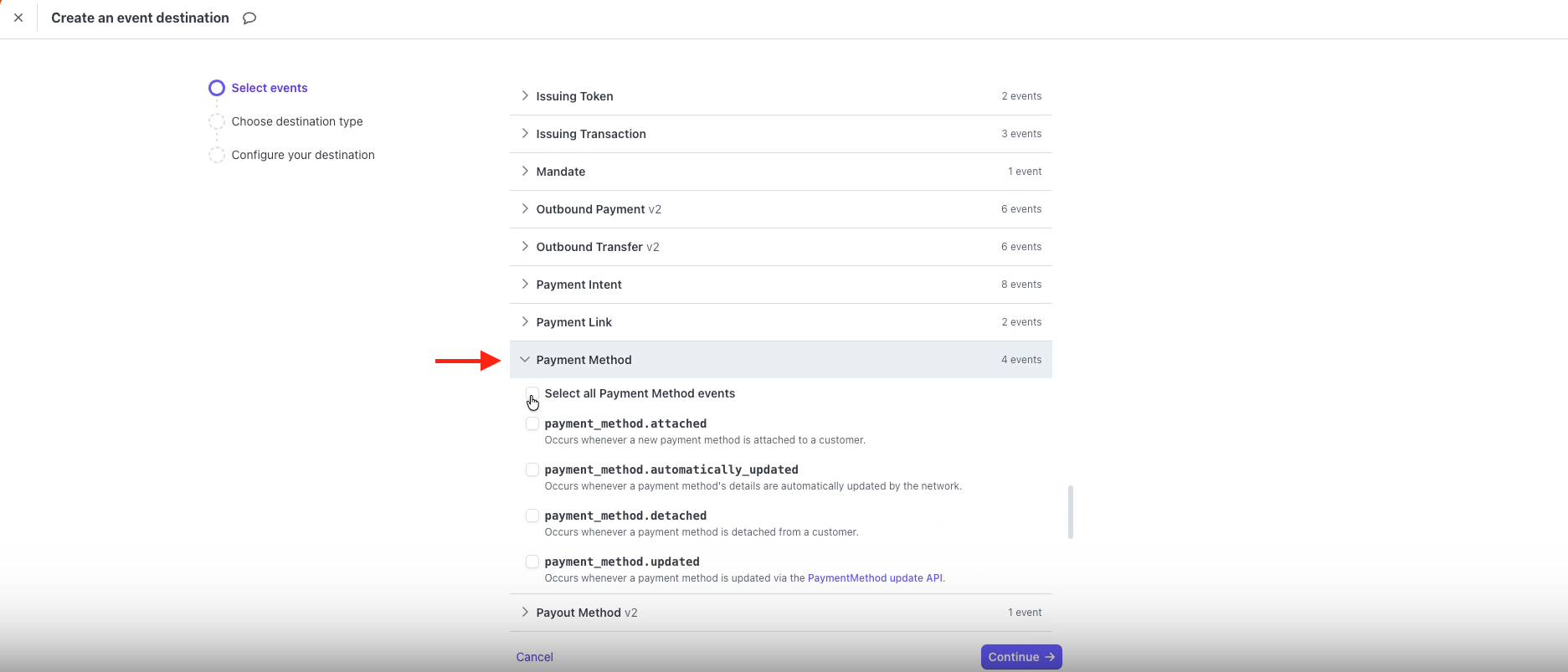
Scroll down to the Refund section.
Check the Select all Refund events option.
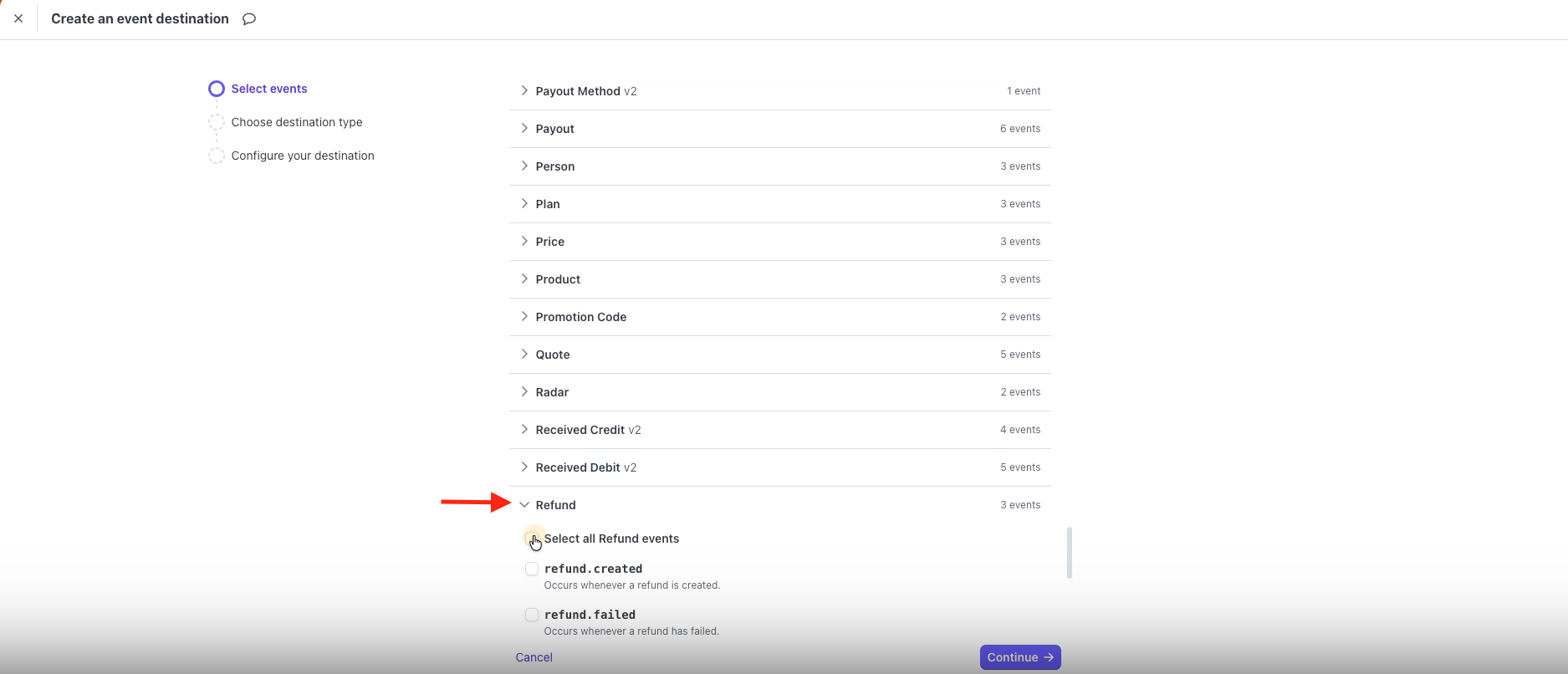
Click Continue.
Select “Webhook endpoint.”
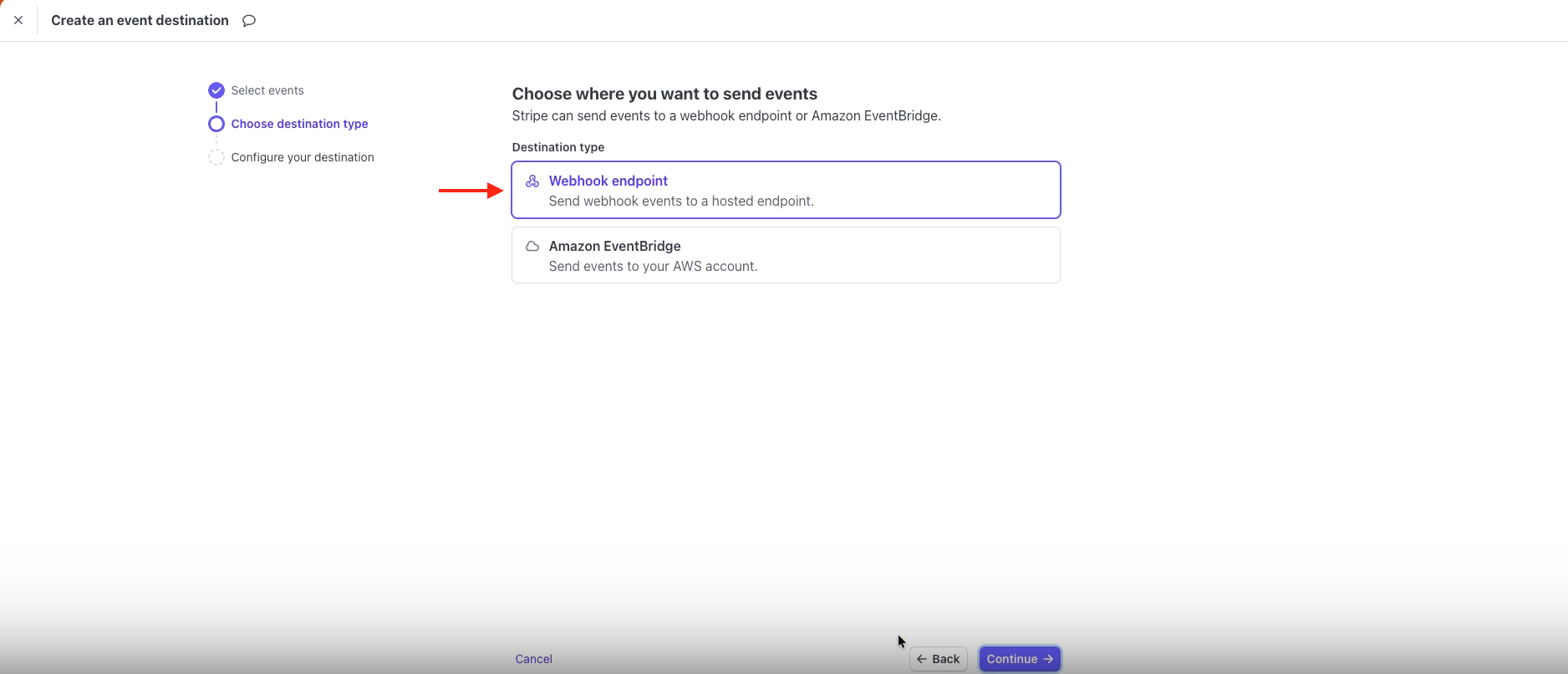
Click Continue.
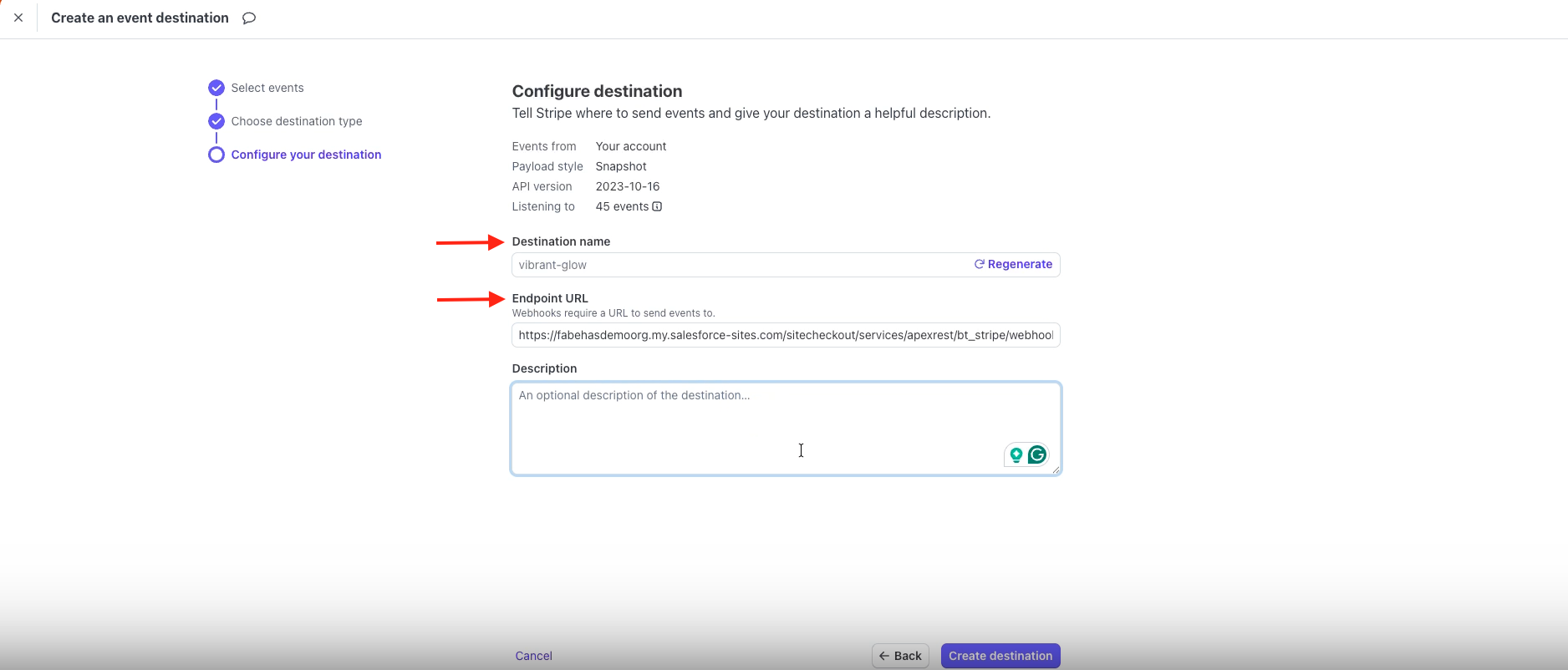
Enter a Destination name.
Enter the URL you created in the Endpoint URL field.
Click Create destination.
To test the new Webhook Event, create a new charge Transaction, capture it, and charge it. A new Webhook Event will be created for the Transaction.
In Stripe, click the Events tab to see the newly created charge. The new Stripe Event ID will match the Webhook Event Event ID.