Check in attendees by scanning the barcode on a ticket from another ticketing provider. The Mobile Check-in app matches the barcode to the attendee in Salesforce and checks them in, even when the device is offline.
What you need
- Blackthorn Events 6.2 or later, which adds the Custom Barcode field to attendees
- Mobile Check-in app 1.4.8 or later, on iOS 18 or Android 12 or later
- Check-in staff with read access to Custom Barcode. The Blackthorn Events permission sets include it; if you use your own permission sets, add the field
How scanning works
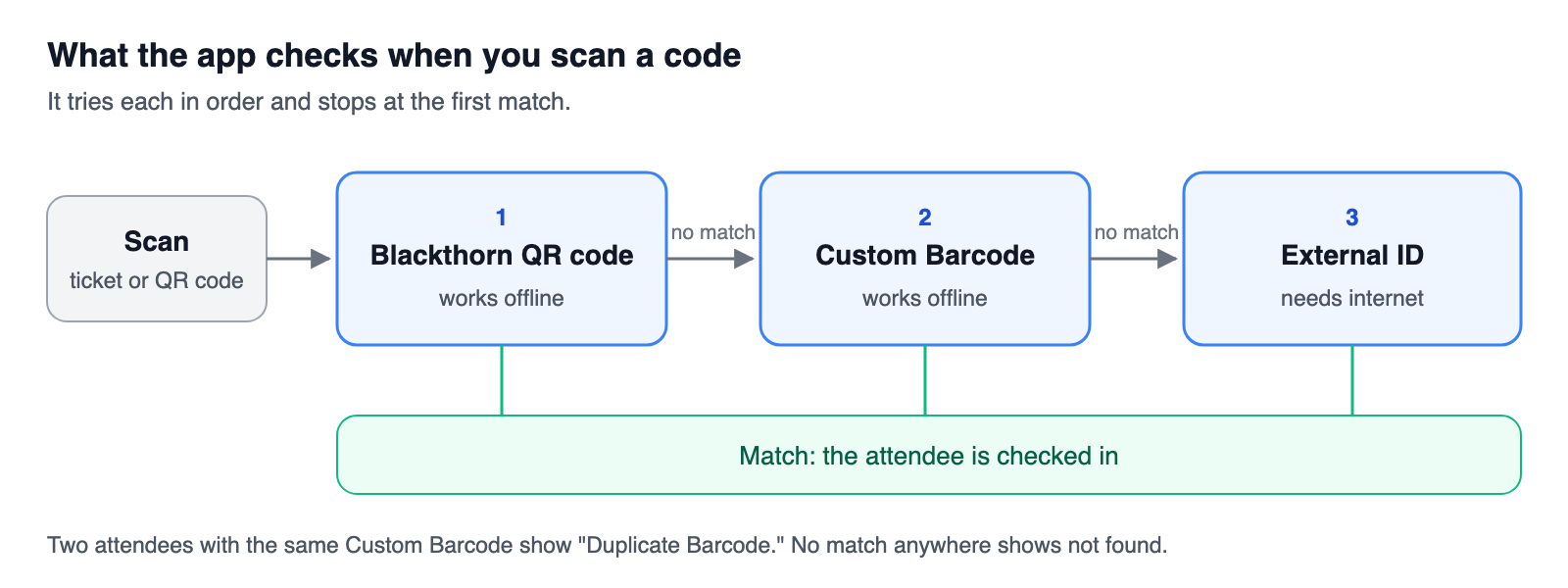
Scan the ticket wherever you scan QR codes today: standard check-in, Swift Mode and session check-in. A barcode match checks the attendee in, exactly like a QR code.
Step 1: Add barcodes to your attendees
- Export the ticket barcodes from your ticketing provider, with a value you can match to each attendee, such as email.
- Import the barcodes into the Custom Barcode field on each attendee, using Data Loader, the Data Import Wizard or your usual import tool.
- In the Mobile Check-in app, open the event and refresh it so the app downloads the barcodes.
Static barcodes only
Use the value printed on the ticket. Barcodes that change every few seconds (rotating barcodes) can't be matched. Check those attendees in by name.
Step 2: Check in by barcode
- Open the event in the Mobile Check-in app.
- Tap the scan button, the same one you use for QR codes.
- Scan the barcode on the attendee's ticket. The app checks them in.
Good to know:
- Matching ignores capital letters and extra spaces.
- It works offline, because barcodes download with the attendee list.
- Only registered attendees are matched.
Barcode rules
| Rule | Detail |
|---|---|
| One attendee per barcode per event | Salesforce rejects a second attendee on the same event with the same barcode: "Custom Barcode [value] is already used by another attendee on this event." |
| Inactive attendees don't count | Canceled, declined, rejected, waitlisted-rejected and transferred attendees can keep a barcode that another attendee also uses |
| Reuse across events | The same barcode can be used on different events |
Troubleshooting
| What you see | What to do |
|---|---|
| Duplicate Barcode: "This barcode is assigned to more than one attendee." | Two registered attendees on the event share the barcode. Values that differ only in capital letters count as the same in the app. Check the attendee in by name, then fix the duplicate in Salesforce. |
| The scan finds no one | Check the barcode is on the right attendee for this event, the attendee is registered, and you've refreshed the event in the app. |
| The barcode on the ticket keeps changing | It's a rotating barcode, which isn't supported. Check the attendee in by name. |
| Barcodes don't scan after upgrading | Confirm Events 6.2 and app 1.4.8, and that staff can read Custom Barcode. |
For Salesforce admins: field details
- Attendee · Custom Barcode (
conference360__Custom_Barcode__c), Text (255), External ID, not unique, no default. - Field access is in the Blackthorn Event Organizer and Events Admin permission sets (edit), and in Events Community Platform User, Events Limited Access, Events Lite User and Events ReadOnly (read).
- Uniqueness is checked by a trigger per event when attendees are saved, not by a database unique index.
Related
- External ID: look attendees up by a Contact external ID instead
- Attendee Check-in & QR Codes
- Using Swift Mode