After refreshing a full or partial sandbox, you must perform the following steps to complete the process.
Clear the Event Page URL Field
When you refresh a full or partial sandbox, you can include Blackthorn objects in your refresh template. If you include the Blackthorn Events objects, it copies the Event Page URL field from production. The field's value won't be updated automatically for the sandbox and related Org ID. Please make sure to use the Event URL field.
You can also manually clear the Event Page URL field using one of the following methods. This will generate the correct Event URL.
Go to the individual Event record for a one-off update.
Use a list view to mass-update Events.
Use a dataloader to make changes to multiple Events.
Update the Events_Domain Remote Site
Go to Setup.
In the Quick Find box, enter and click “Remote Site Settings.”
Click Edit next to Events_Domain.
Enter “https://events.blackthorn.io” in the Remote Site URL field.
Click Save.
Update the Platform Domain Field
Go to Setup.
In the Quick Find box, enter and click “Custom Settings.”
Click Manage next to Blackthorn | Events Settings.
Click Edit.
Update the Platform Domain field to match the Remote Site URL field.
Click Save.
Reauthorize DocumentLink
After refreshing your sandbox, you must reauthorize DocumentLink to avoid errors.
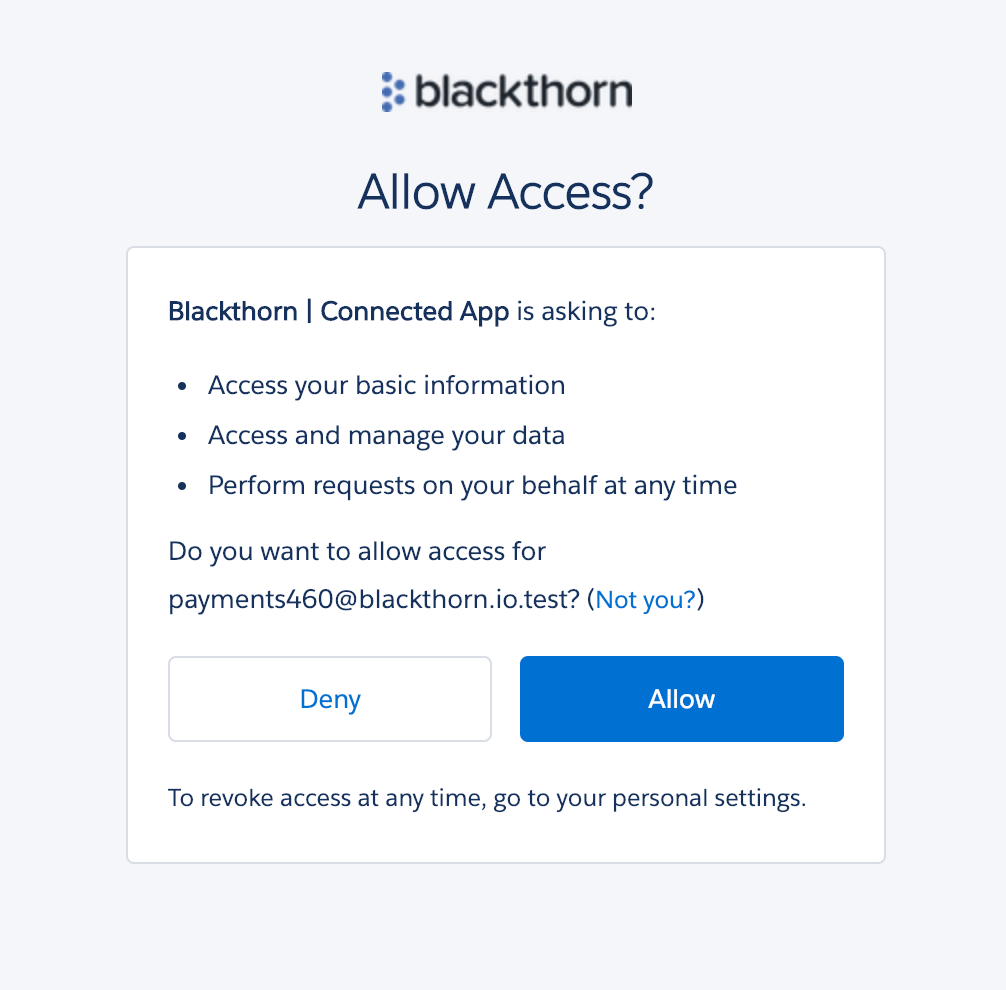
Click the oauth link to complete the DocumentLink setup.
Click Allow to allow access.
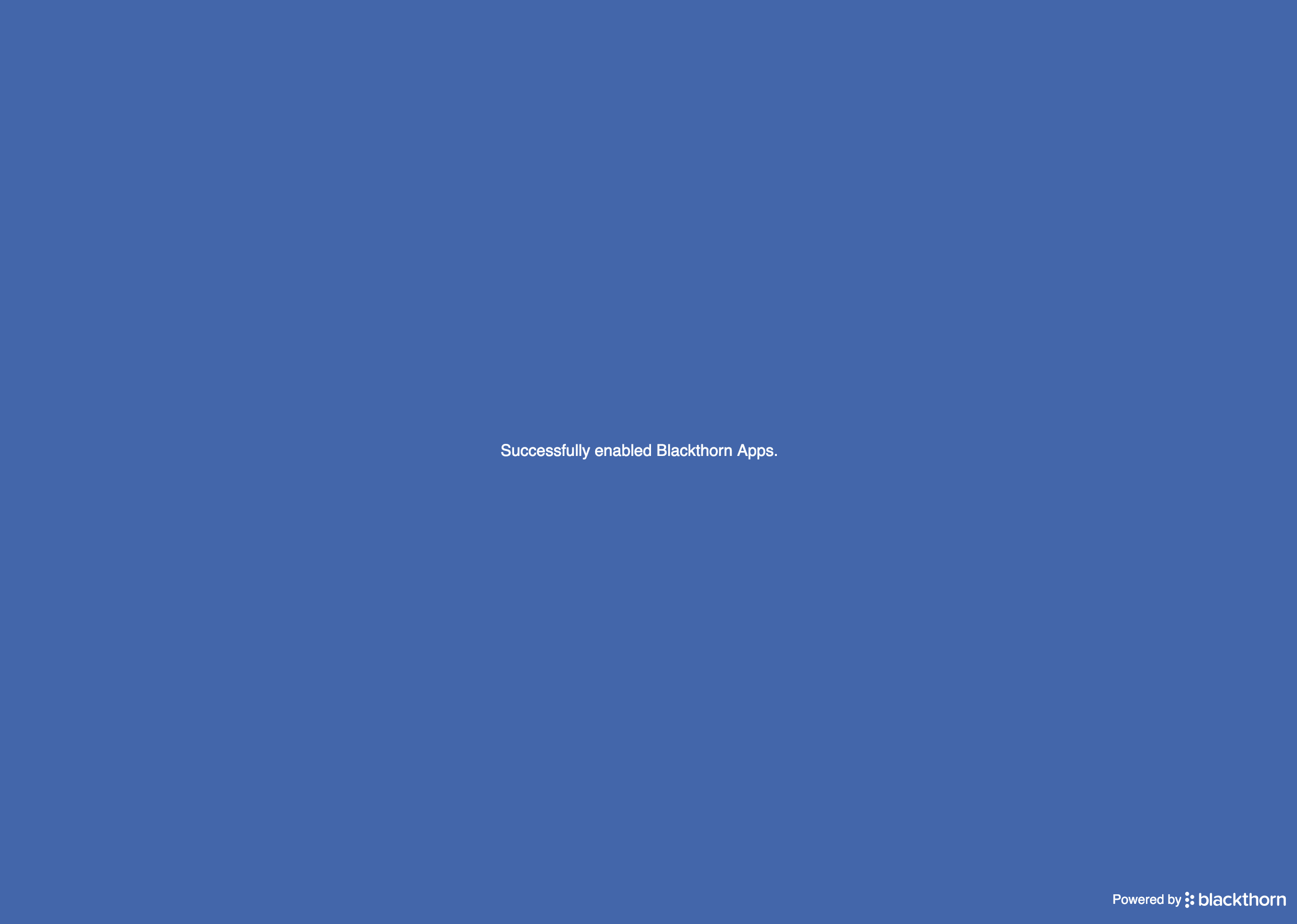
If the authorization is successful, you will see a success message.
Install and Reauthorize the Blackthorn Connected App(s)
The following Connected Apps must be installed and reauthorized in your Salesforce orgs.
Blackthorn | Connected App - required for using Blackthorn Events and Blackthorn Payments
Mobile Check-in - required to use the Blackthorn Mobile Check-in app
Blackthorn | Mobile Connected App - required to use the Blackthorn Mobile Payments app
Blackthorn Message - required for using Blackthorn Messaging
For each org that you use to log in to Blackthorn, have a Salesforce System Administrator in
complete the following steps.
Go to Setup.
In the Quick Find box, enter and click "Connected Apps OAuth Usage."
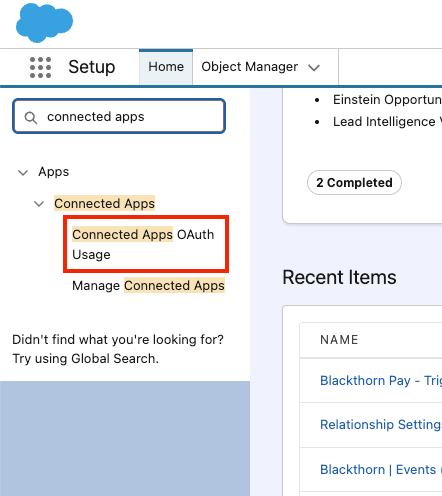
Find the following Blackthorn apps:
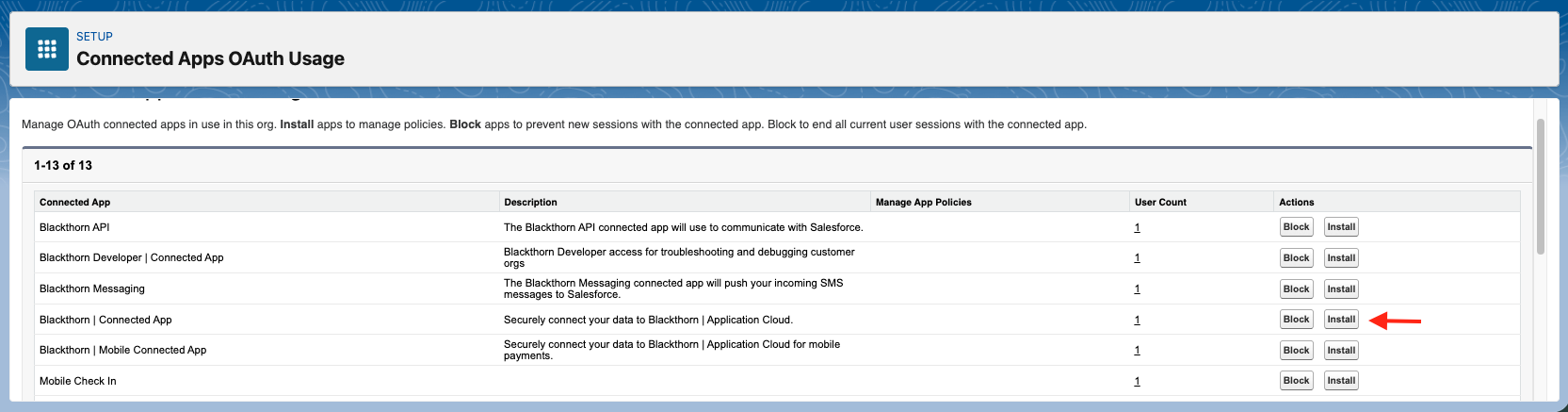
Blackthorn | Connected App - for all users (Events and Payments)
Mobile Check-in App - if the Mobile Check-in is being used
Blackthorn | Mobile Connected App - if the Mobile Payments is being used
Blackthorn Message - if Messaging is being used
Click Install for each of the apps. Note: If the Uninstall button appears instead of the Install button, the app has already been installed, and you do not need to do anything.
Once installed, check the app’s settings and make sure your policy has Permitted Users set to “All users may self-authorize.”
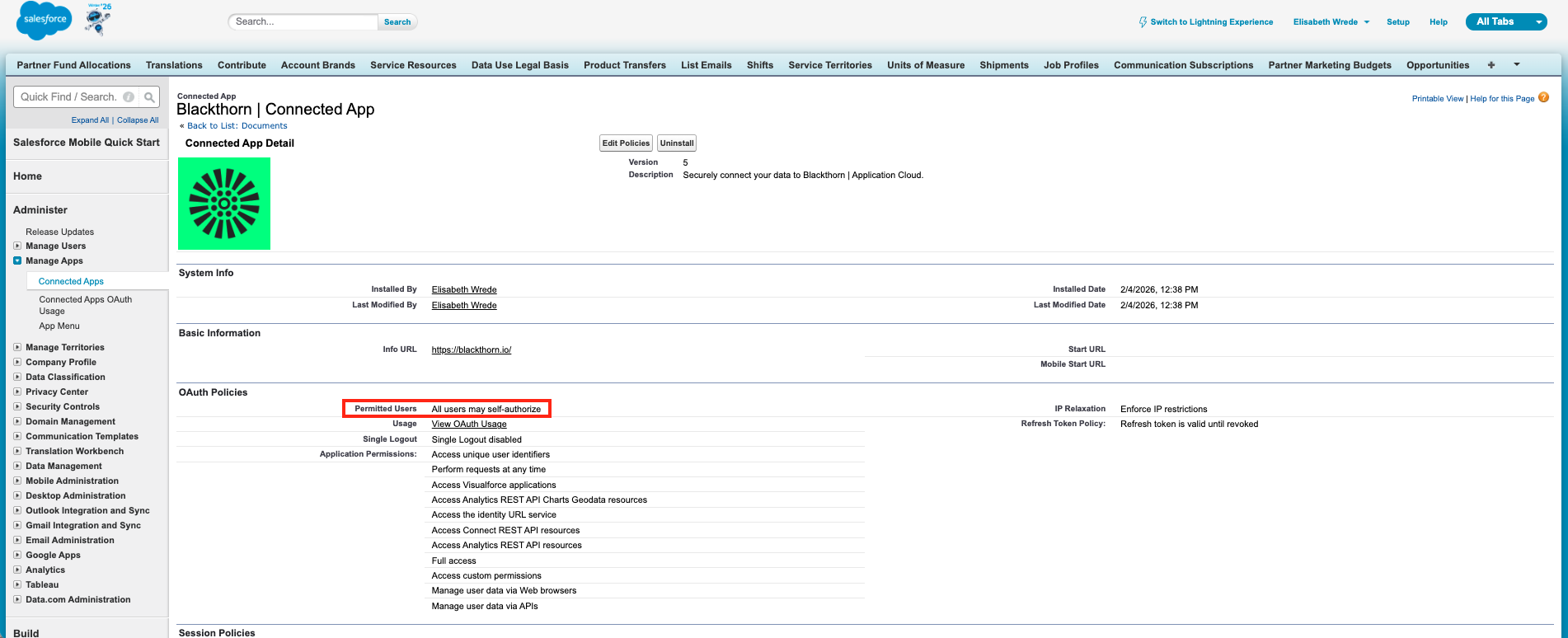
Once all of the apps are installed, they will appear in the “Managed Connected Apps” and “Connected Apps OAuth Usage” sections.