Click the floppy disk icon in the top toolbar and select "Back to my Layouts" to open the Your Layouts modal. From here you can see every layout saved in your org, with four key columns:
- Layout: The name you gave it when saving
- Default: YES means this layout is used by all events that haven't picked a specific one. Only one layout can be the default at a time.
- Status: In Use means this layout is assigned to the event you are editing
- Actions: Duplicate or delete a layout
Click "Create a new Layout" to start a fresh layout from the template picker without affecting any existing layout.
How layouts are shared across events
⚠️
Editing a shared layout changes the page for every event using it. If you only want to change one event's page, choose "Make a copy for this event" in the Shared Layout dialog before editing.
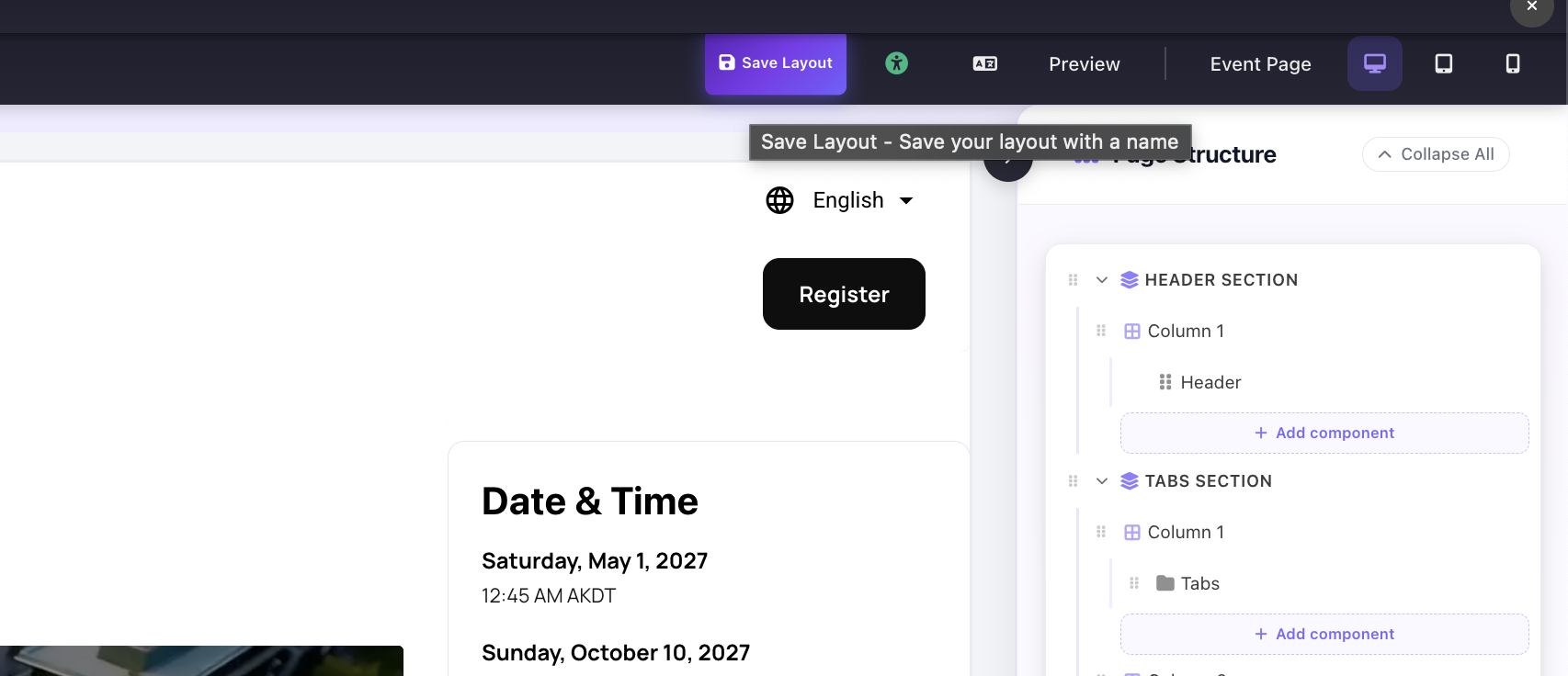
Floppy disk icon in the toolbar: click it then select "Back to my Layouts" to open the layouts manager