When you click on a saved layout from the Your Layouts modal, it opens a layout detail view with a full preview and several actions available in the top-right corner:
Save as Template
Converts the layout into a reusable template stored under My Templates in the template selector. Templates are event-agnostic. They aren't assigned to any specific event, so they can be freely reused as a starting point for future events across your org. When you open the Choose a Template modal, your saved templates appear alongside Blackthorn's built-in ones.
Layouts vs. Templates
Layouts are live and attached to one or more events: when you edit a layout, changes appear on those event pages immediately. Templates are blueprints: applying one creates a fresh copy of the layout for the new event. Editing a template doesn't affect any existing events that were built from it.
Duplicate
Creates an identical copy of the layout as a new, independent layout. Useful for building a variation without affecting the original: for example, copying a conference layout to adapt it for a smaller workshop event.
Delete
Permanently removes the layout. Events that were actively using this layout will lose their custom page design, so make sure no live events depend on it before deleting.
💡Build a polished layout for one event, save it as a template, and every future event in your org can start from that same foundation: brand colors, structure, and components all pre-configured. It's the fastest way to keep consistent design across a large event calendar.
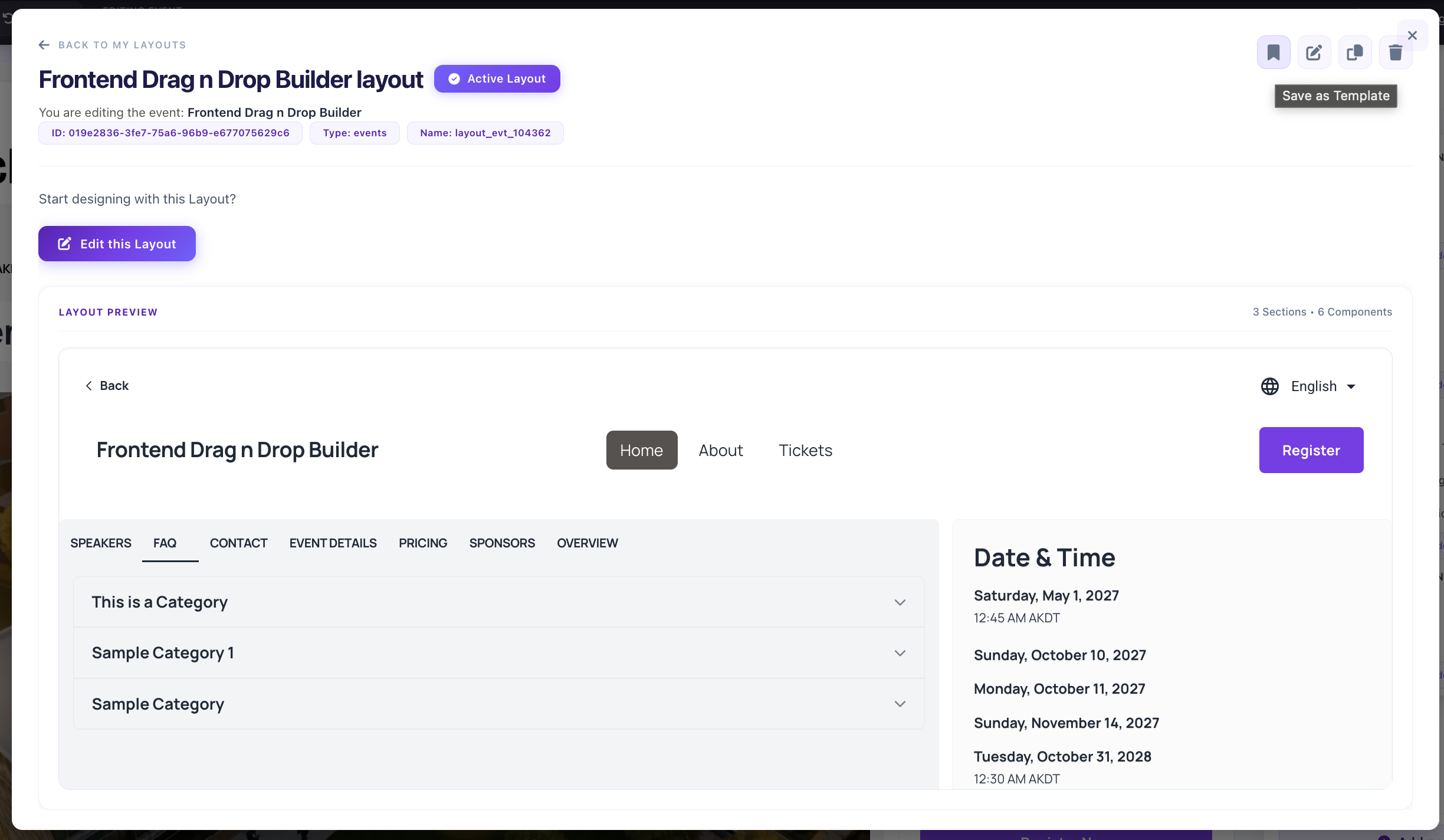
Layout detail modal: Save as Template button (top right), plus edit, duplicate, and delete actions