Page Designer
The Buttons section adds one or two CTA buttons directly inside the header bar: separate from the nav items and always visible.
Register Button (toggle)
Show or hide a prominent CTA button in the header. Link it to #register (the Section ID of your Checkout Form section) so clicking scrolls visitors directly to registration without leaving the page.
Register Button Label
Text on the button. Short labels work best: "Register", "Get Tickets", "Join Us", or "Buy Tickets" are common choices that fit comfortably in the header.
Register Button Variation
Choose Primary, Secondary, Accent, Gradient, or Full-width. Primary is the most visually prominent and recommended for a single register CTA.
Enable Secondary Button
Adds a second button alongside the Register button: useful for "Learn More" paired with "Register". Style it as Secondary to create a clear visual hierarchy.
Secondary Button URL / Available sections & tabs
Link the secondary button to a page section, a tab, or an external URL using the same anchor format as nav items (#section-name or #section-name:tab-id).
💡Link the Register button to #register so clicking it scrolls visitors directly to your Checkout Form without leaving the page.
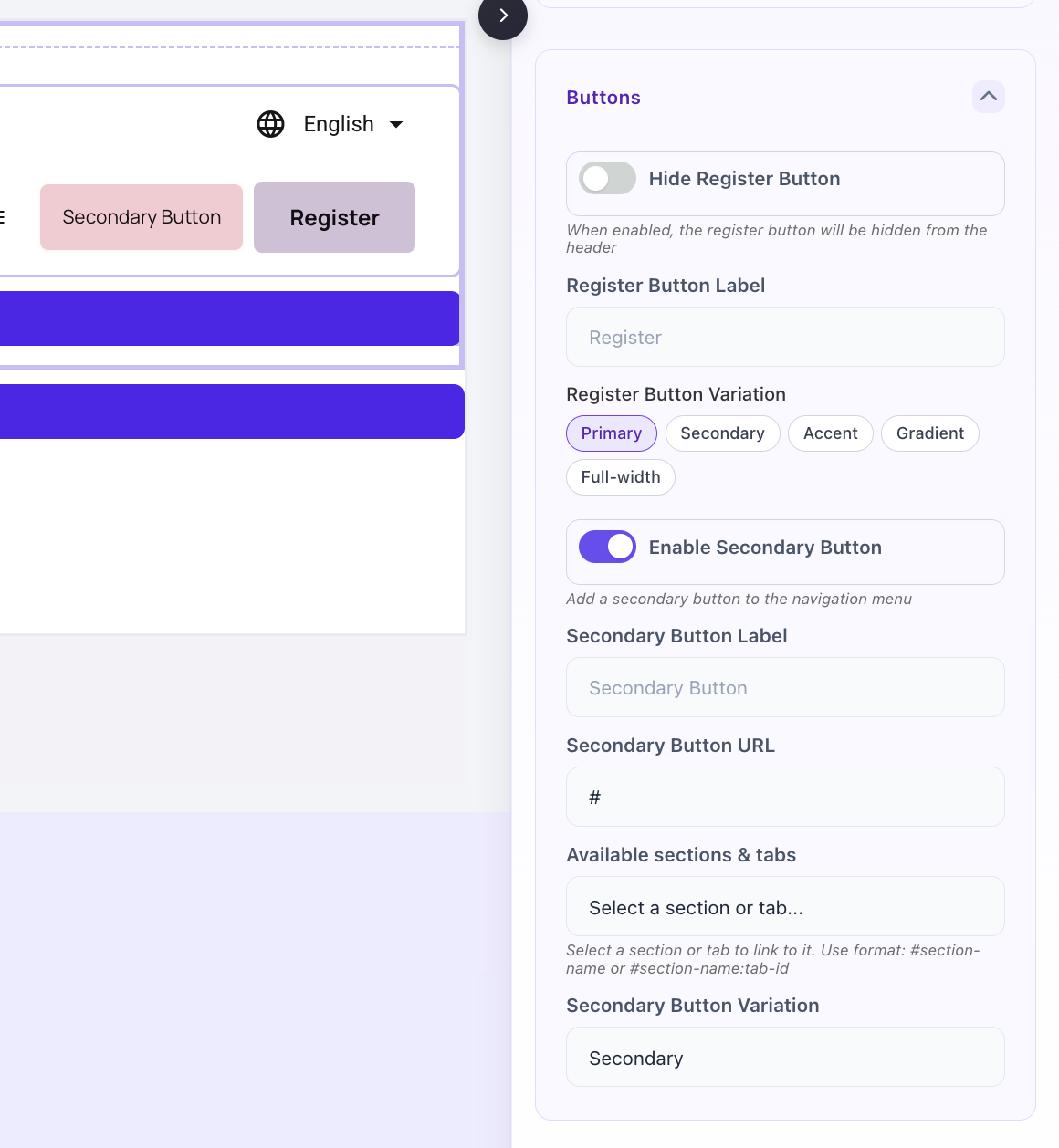
Header component: Buttons settings tab