Click the ⊞ grid icon (Templates) in the toolbar, pick a layout from the BT Templates tab, and click Use This Template. Three things happen immediately:
- The layout JSON is imported: Every section, column, and component is placed on the canvas exactly as designed in the template.
- The theme is updated: The template's built-in theme is applied to Site Settings. Components like Tabs, Speakers, and Pricing cards automatically reflect the new color tokens.
- Event data auto-wires: Components like Date & Time, Pricing, Speakers, and Session Schedule immediately pull live data from your Salesforce event record.
Available templates:
- Bold Conference: Hero · Speakers · Schedule · Tickets · Venue · FAQ · CTA
- Tabbed Conference: Tabbed layout with Schedule · Speakers · FAQ · Pricing · Sponsors
- AI Event / Webinar: Info Cards · Schedule · Speakers · Pricing · Location · FAQ
- Healthcare Research Conference: Schedule · Speakers · Pricing · Location · About · FAQ
- Simple Checkout Modern Design: Image · Sessions · Checkout form · Sponsors · FAQ
- Charity Gala: Hero imagery · Sponsors · Info cards · Schedule · Location
- Octoberlights Fest: Pricing · Sponsors · Schedule · Info Cards · Speakers · FAQ
⚠️
Applying a template overwrites your Site Settings, including the theme you just set with the Theme Wizard. After clicking "Use This Template", go to Site Settings → Theme → Your Org Themes and re-select your saved theme. It was saved during the wizard step, so it will always be there.
💡
To edit any element, just click it on the canvas. The corresponding settings panel auto-focuses in the right sidebar. Click a component to edit that component, a column to adjust column settings, a section to control the section layout, or a tab to manage tab content.
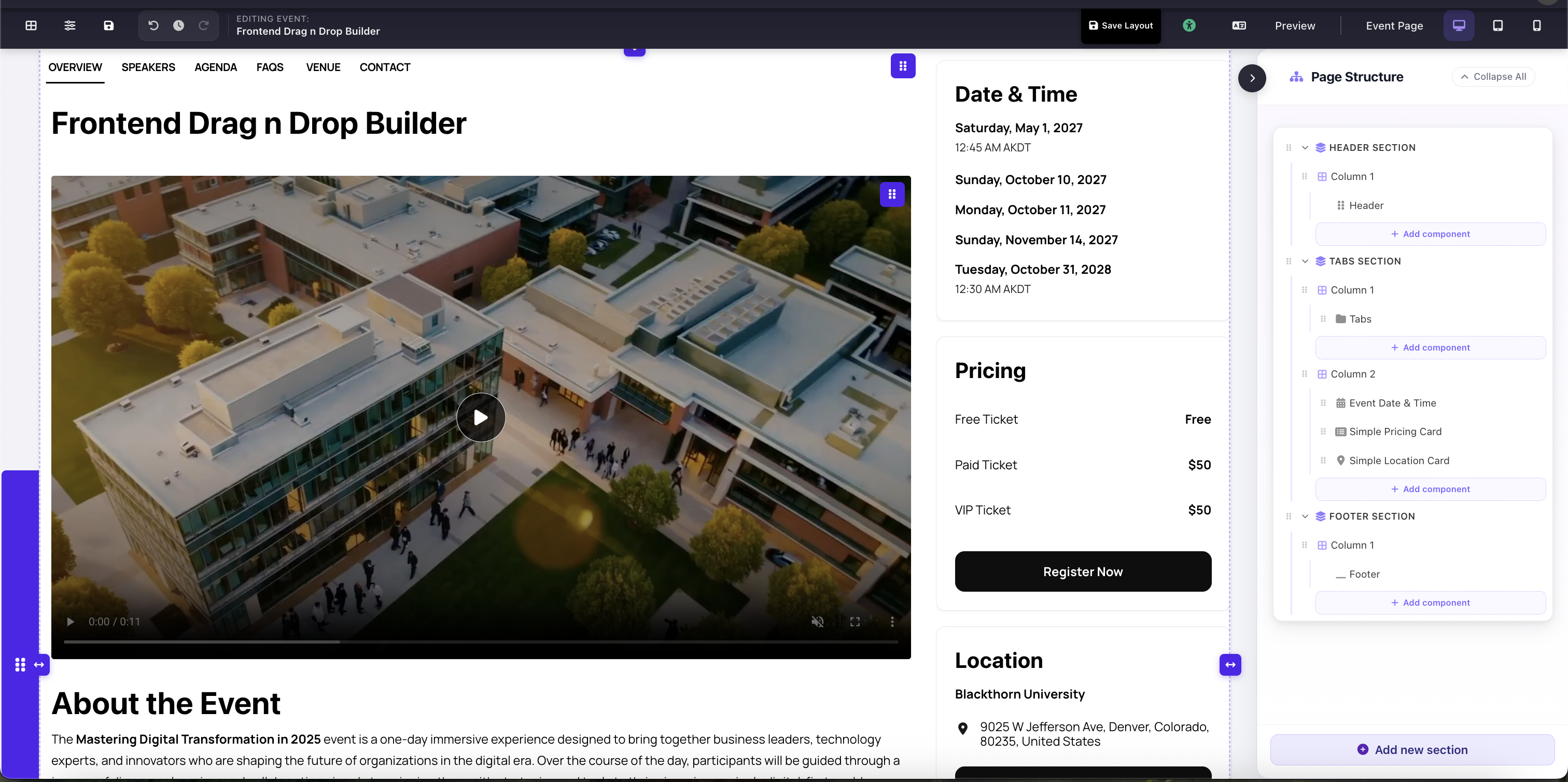
Tabbed Conference template applied: canvas populated with Tabs, video, Date & Time, Pricing, Location, About, and Footer sections