Click any component, column, section, or tab on the canvas and its settings panel auto-focuses in the right sidebar. From there you have full control over content, style, and spacing.
Rearranging components
- Drag within a section: Grab the drag handle (the grid icon that appears when a component is hovered or selected) and drag it up or down to reorder components within the same column or section.
- Duplicate: Use the Duplicate button at the bottom right of the settings panel to copy a component, column, or section in place. Works for all three levels: components, columns, and sections.
- Delete: The Delete button (red, bottom right of the settings panel) removes the selected element. Sections and columns remove everything nested inside them.
Copying settings between components
⚠️
Known limitation: components cannot be dragged across sections. If you need to move a component to a different section, add a new component of the same type in the target section, then use Copy content and settings (in the ⋮ menu in the top-right corner of the component settings panel) on the original, and Paste component settings on the new one. This transfers all configuration without retyping anything.
💡
The Copy / Paste Settings workflow is also useful for reusing a styled component across multiple sections: configure it once, then paste the settings into as many copies as you need.
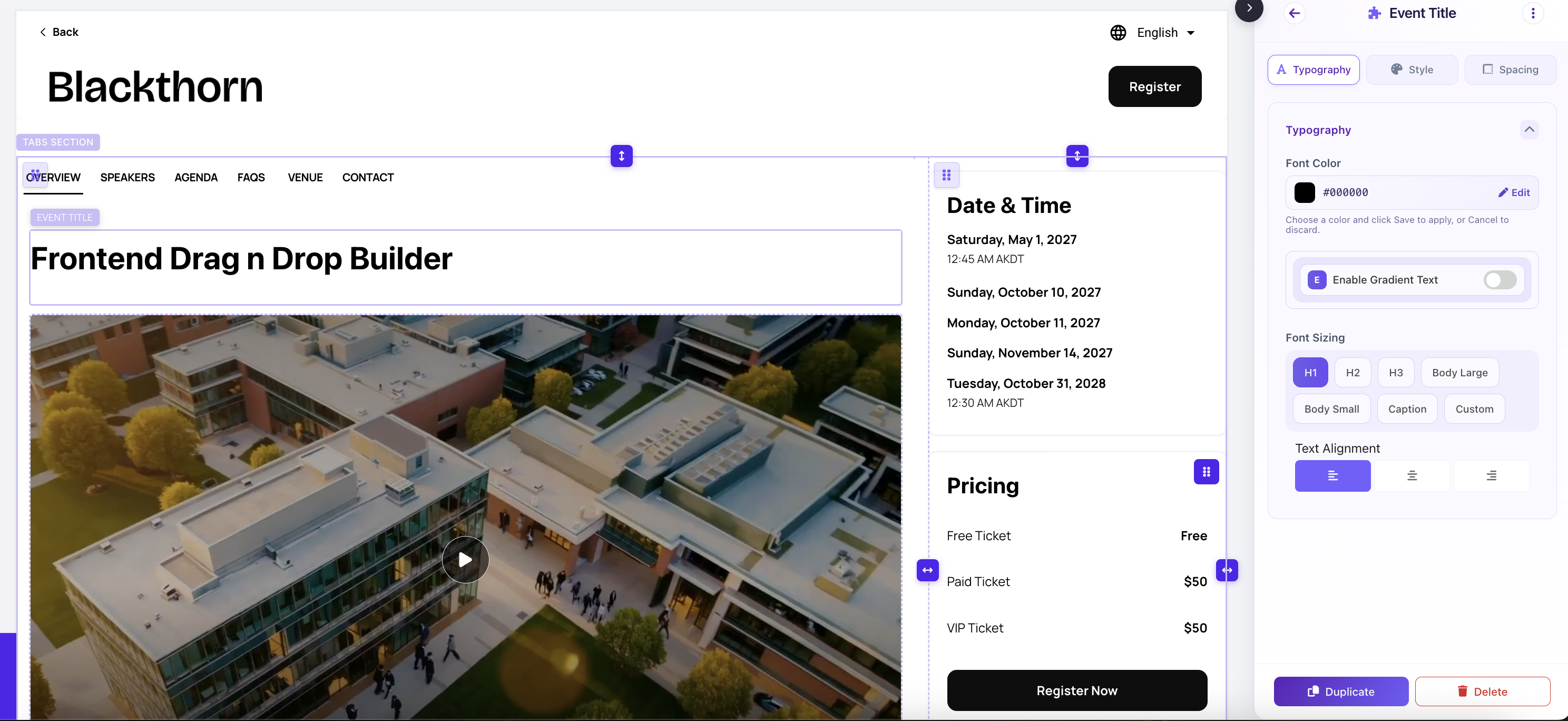
Event Title component selected: settings panel with font sizing, gradient text, and text alignment controls