If you were a Stripe customer before coming to Blackthorn Payments, you may want to sync your Payment Gateway Customers, Payment Methods (Cards and Bank Accounts), and Transactions (payments) from Stripe to Salesforce.
During the sync, if the Payment Gateway Customer email matches a Salesforce Contact's Email, the matching Contact will be populated on the Payment Gateway Customer's Contact lookup field.
If the Payment Gateway Customer's email matches with more than one Contact record Email, the Payment Gateway Customer's Contact lookup field will not be populated.
Blackthorn Payments has no Contact creation logic.
We no longer have hard-coded matching based on email and first name. Matching is now handled using your active Salesforce Duplicate Rules. Click here for more information.
If you want a Contact record created, either create/update the Salesforce Contact record with the same email from Stripe. Do this before syncing/creating a Process Builder to create a Salesforce Contact when the Payment Gateway Customer record is created in Salesforce.
The sync process is only to migrate your records from that moment backward. Syncing Stripe with Salesforce going forward can be done through Webhooks, but you should not be originating records outside of Salesforce.
Sync Historical Data
You can easily transfer historical data or customers, Payment Methods, and Transactions from Stripe to Blackthorn Payments.
Before you start...
There are several ways to match data that syncs into Salesforce. Before you begin, confirm that your custom data, matching logic, or metadata is set up correctly. If you need help or want to chat, go to the Community where Support and Onboarding are available to help.
Review the instructions below and move through each of the following sections.
- Sync your Stripe records in this order.
- Customers - wait until this job is done before proceeding.
- Payment Methods - wait until this job is done before proceeding.
- Charges/Refunds - wait until this job is done before proceeding.
- Payouts
- Start with a small date range.
- Select a small date range for a few Customer records to bring into Salesforce. This way you can confirm that everything looks correct and has related correctly before syncing everything.
- Review how the emails match.
- During the sync, if the Payment Gateway Customer's Email matches a Salesforce Contact's Email, the matching Contact will be populated on the Payment Gateway Customer's Contact lookup field.
- BUT, if the Payment Gateway Customer's Email matches with more than one Contact record's Email, then the Payment Gateway Customer's Contact lookup field will not be populated.
Steps
-
Go to the Payment Gateway record you want to sync.
-
Click the upside-down carrot and then click Sync with Stripe.
-
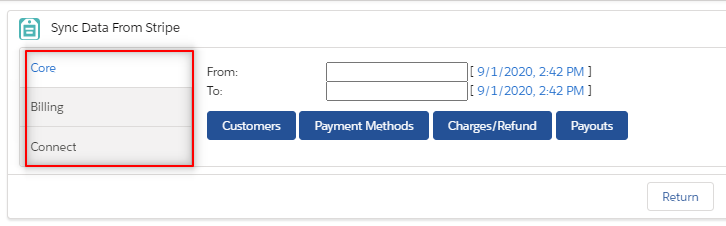
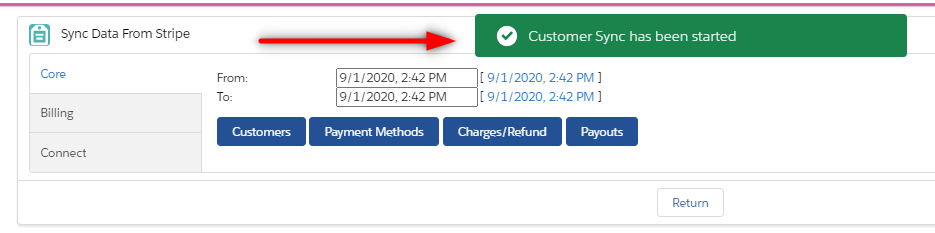
There are three tabs: Core, Billing, and Connect. Core is for traditional Stripe, Billing is for Stripe Billing, and Connect is for Stripe Connect.
-
Select the Core tab.
-
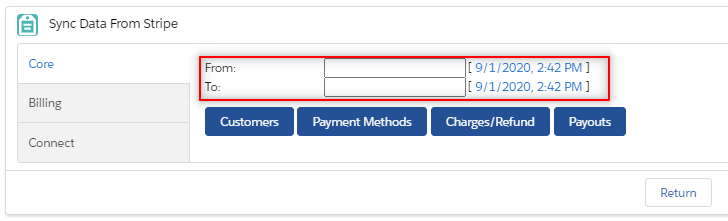
Choose a date/time range for the data sync by entering values in the From: and To: fields, if applicable.
-
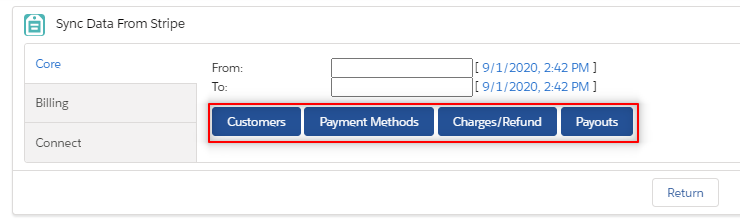
Click Customers to sync customers, Payment Methods for Payment Methods, or Charge/Refund for Transactions.
-
A message will appear letting you know the process has started.
When using this function, there are no "undo" calls, so be careful with your button click. If you want to make sure everything comes over correctly, sync a short amount of records before syncing them all.
Suggestion: If you have a lot of records (10,000+), click the relevant button and let it run all night.
Historical Apex Job
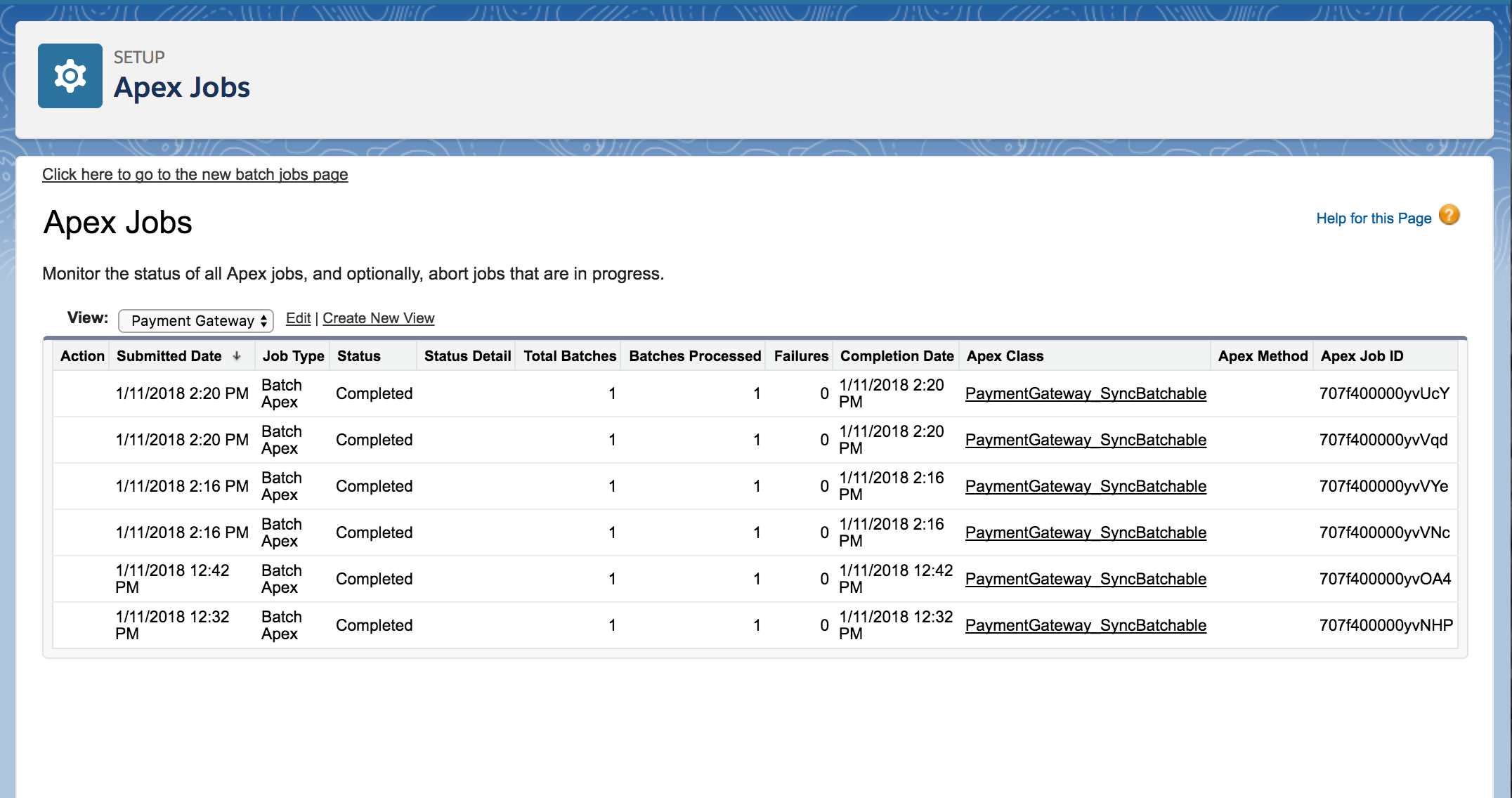
- To monitor each Historical Sync, navigate to Apex Jobs.
Lightning/Classic: Setup > In Quick Find, Search and Click: "Apex Jobs".
- The Apex Class is called "PaymentGateway_SyncBatchable".
Suggestion: Click Abort next to the "In Progress" job if you need to cancel the job.