The “Require at Least One Session” feature allows Event Organizers to ensure Attendees select at least one Session when registering for Events. This feature prevents incomplete registrations and reduces the need for manual follow-up with Attendees who skip Session selection.
When enabled, this feature:
Prevents Attendees from completing registration without selecting at least one Session, which is especially important for multi-session Events.
Works on a per-Event Item basis for Tickets that include Sessions, meaning different Event Items can have different Session requirements.
Displays clear messaging that Session selection is required.
Shows validation errors until an Attendee has selected a Session.
Use Cases
This feature is ideal for:
Open House Events where Session selection is critical for capacity planning.
Educational Events where Attendees must choose from available course Sessions.
Conferences where Session attendance tracking is required.
Any Event where Session selection is mandatory.
Important Considerations
Mixed Event Item Requirements
You can have an Event that offers a mix of Event Items, with some requiring at least one Session to be selected and others that have no Session requirements. The requirement applies only to Event Items for which the Require At Least One Session (conference360__Require_At_Least_One_Session__c) field is checked. All other Event Items are not impacted.
Capacity Exemptions
The capacity validation checks whether a Session has available capacity before enforcing the requirement. If all Sessions are sold out and there is no waitlist available, the requirement is waived. This prevents the requirement from blocking registration for Event Items without a related Session. Waitlisted Event Items are also exempt from the requirement.
Prerequisites
Create an Event with at least one Event Item, which has at least one Session.
Confirm that the Event Organizer has the required field permissions to use the Require At Least One Session field.
Setup
Before you can use the “Require at Least One Session” feature, complete the steps below.
Confirm that the Require At Least One Session field is visible on the Event Item page layout. If it isn’t, follow these steps to add it.
Open the Event Item record with the related Session that you want to require.
Click the Pencil icon next to the Require At Least One Session field, and check the checkbox.
Click Save.
Go to the related Event record.
Click Update.
Attendee Experience
When an Attendee reaches the Session selection page, they will see a message indicating that they must select at least one Session.
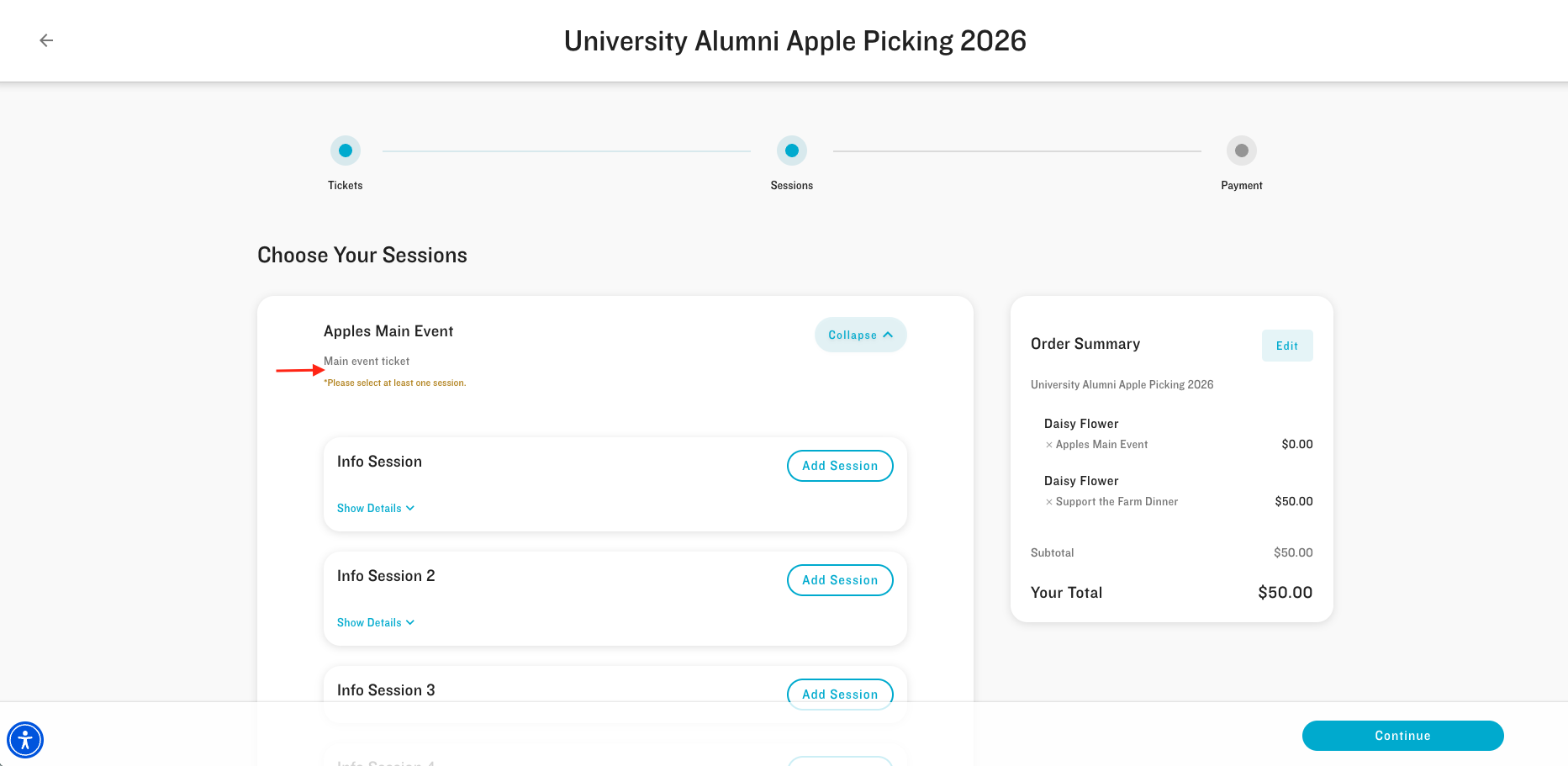
Once the Attendee adds a Session to the cart, they can click the Continue button to complete the checkout process.
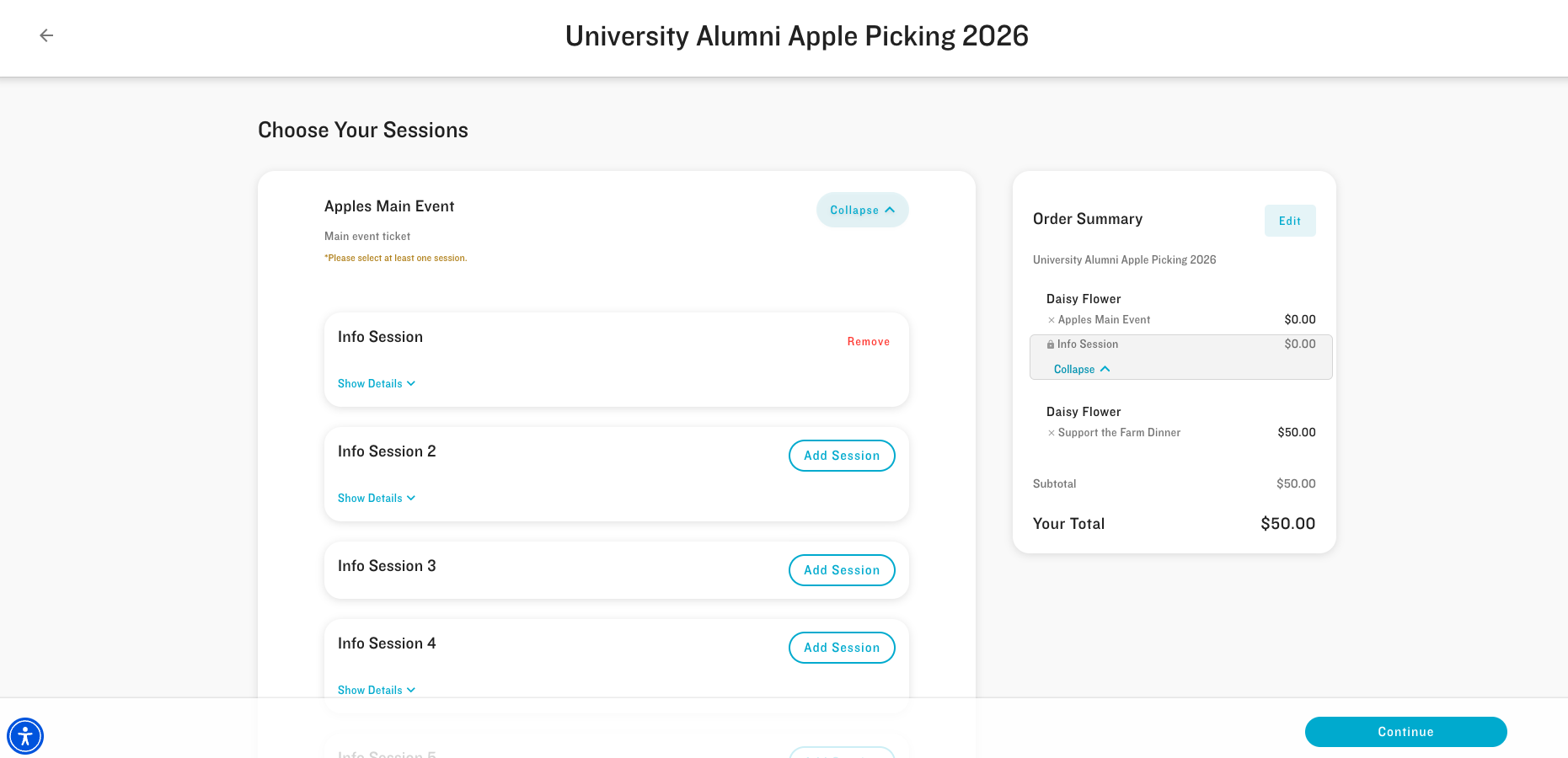
If an Attendee clicks Continue without selecting at least one Session, they will see an error message stating that
Required Sessions vs. Require At Least One Session
Required Sessions
The “Required Sessions” feature allows Event Organizers to mark specific Sessions as mandatory. If a Session’s related Event Item Session record has the Required (conference360__Required__c) field checked, and an Attendee adds the related Ticket to their cart, the Session is automatically added to the cart. The result is that the Attendee cannot remove the Session from the cart unless they also remove the Event Item.
Require At Least One Session
Event Organizers can use the “Require at Least One Session” feature when an Event Item has multiple Sessions associated with it, and the Attendee must select at least one Session. The specific Session an Attendee selects is up to them. The result is that Attendees are prevented from completing their registration unless they choose at least one Session for each Ticket (Event Item) whose Require At Least One Session field is checked.
New Field
Object: Event Item
Field Name: Require At Least One Session
API Name: conference360__Require_At_Least_One_Session__c
Data Type: Checkbox
Default: unchecked
Help Text/Description: When checked, Attendees must select at least one Session to complete registration.
Updated Permissions
Read and Edit
Blackthorn | Events (Admin)
Blackthorn | Events (Organizer)
Blackthorn | Events (Community/Platform User)
Read Only
Blackthorn | Events (Lite User)
Blackthorn | Events (Limited Access)
Blackthorn | Events (Read Only)
No Access
Blackthorn | Events (Community Guest User)
Add a Field to a Page Layout
Go to Setup.
In the Quick Find box, enter and click the name of the object.
Click Page Layout.
Click the name of the page layout.
Locate the field you want to add to the page layout.
Drag and drop the field onto the page layout.
Repeat the previous step for any other fields you need to add to this page layout.
Click Save.
If a record for that object is open in another tab, refresh the page to see the added fields.