Do not delete Scheduler records.
Instead, update the Scheduler Status to “Unschedule” or “Archive” via the Smart Scheduler component.
To see a list of scheduled jobs, go to Blackthorn | Scheduler Admin > Administration > Scheduled Jobs. The list of Email Scheduled Jobs is in this list. For each job in the List view, you can perform a few actions depending on the Status of that job.
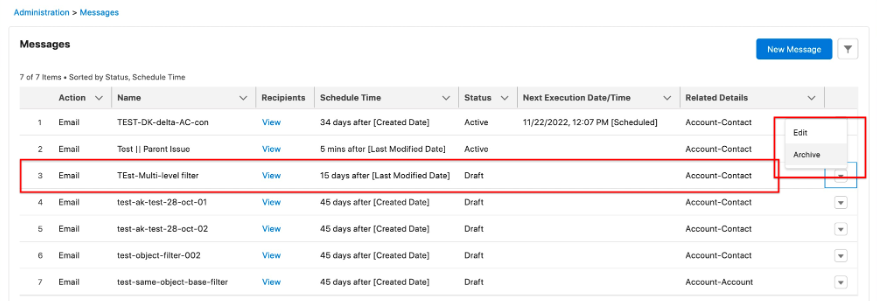
When the Scheduler Status = “Draft”, the options are to “Edit” and “Archive” the job.
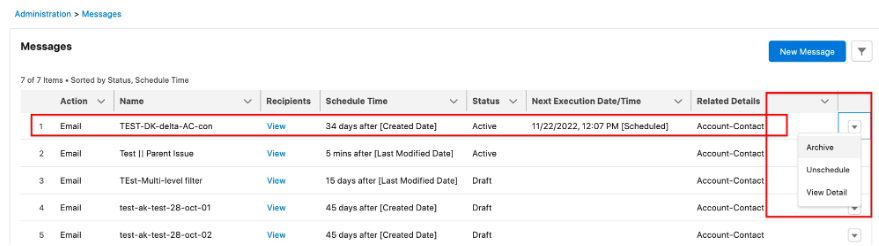
When the Scheduler Status = “Active”, the options are “Archive”, “Unschedule” and “View Detail”.
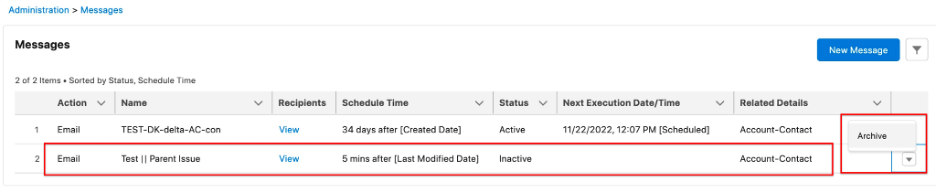
When the Scheduler Status = “Inactive”, the only option is to “Archive”.
FAQ
Q: Can I migrate Schedule records from production to a sandbox?
A: No. When a Salesforce sandbox is refreshed from production, the sandbox will NOT contain the existing Schedule records that are in production. You will need to manually create the Schedule records in the sandbox.