Setup Prerequisite
To use the Blackthorn Badge Generation tool for individuals other than Attendees (ex., Speakers and Staff), they must also have an Attendee record. Badges can only be created with the Attendee record as the source object. Event Organizers must manually create Attendee records for Speakers and Staff if they require a badge.
Users can create badges in various layouts and sizes for six default roles: Attendee, Speaker, Sponsor, Staff, VIP, and Volunteer. Between the layouts, sizes, and templates, there are 36 different configurations.
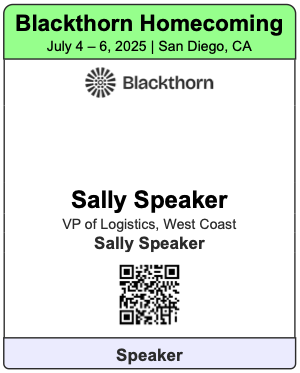
3” x 4” Single-sided
3” x 4” Double-sided
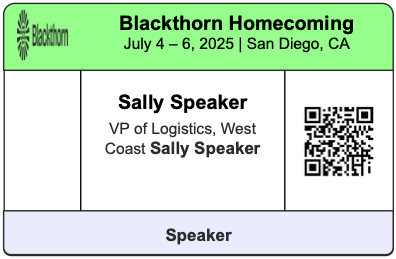
4” x 3” Single-sided
4” x 3” Double-sided
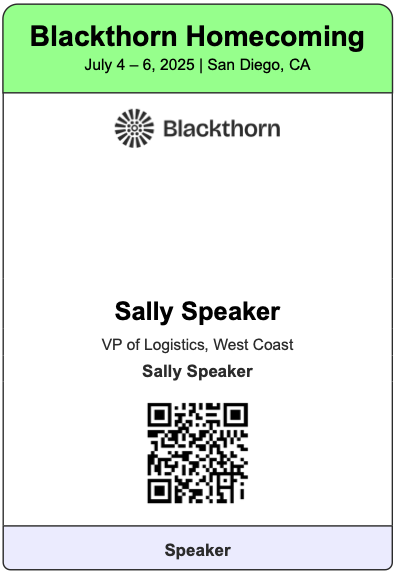
4” x 6” Single-sided
4” x 6” Double-sided
Templates
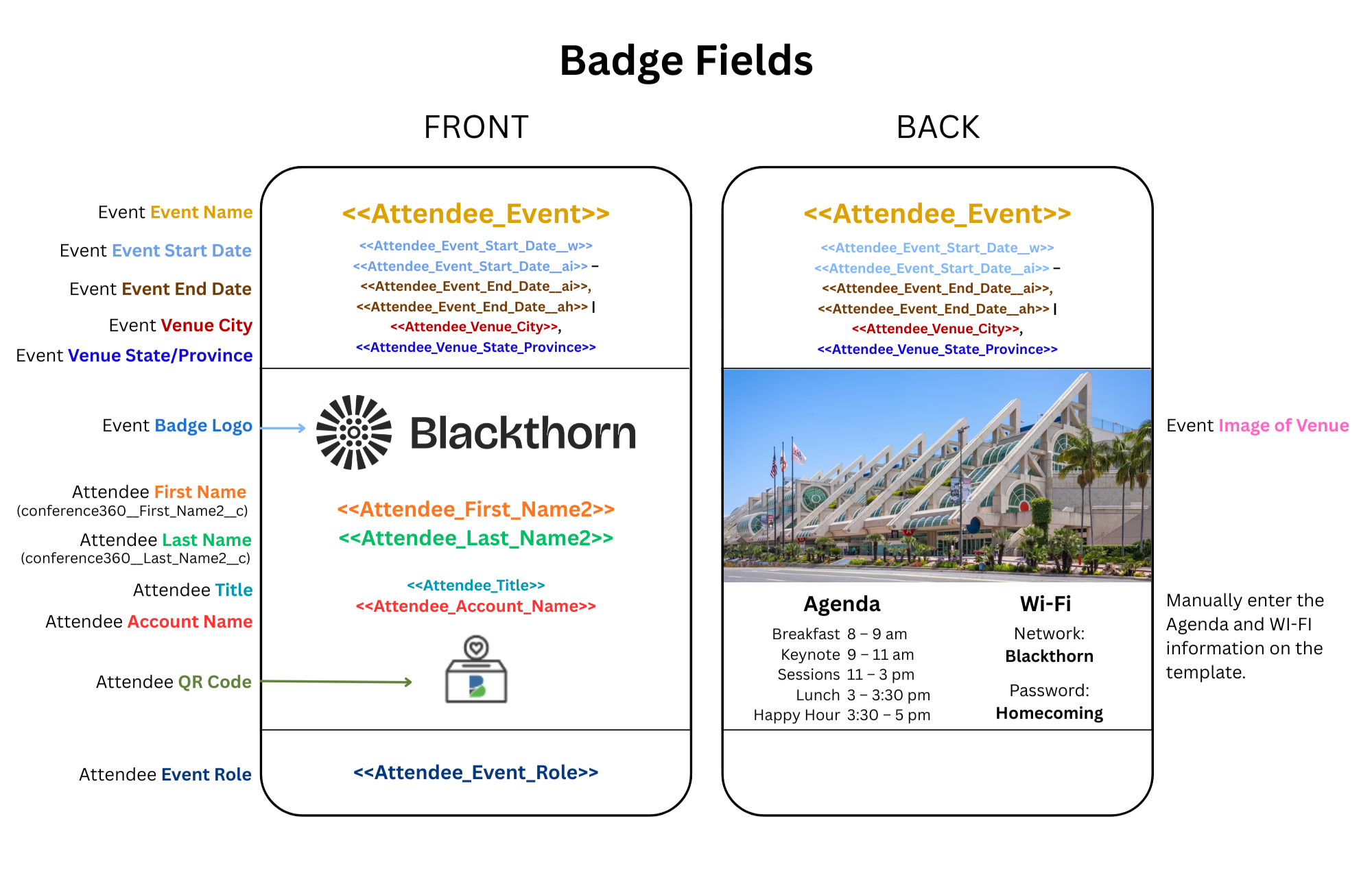
Template Legend
The template legend is based off of the 4" x 6" double-sided template. Each of the following templates includes some or all of the information in the template legend.
Single-Sided Templates
The following single-sided templates are available for use.
3” x 4”
There are six, single-sided, 3” x 4” templates. One for each of the roles: Attendee, Speaker, Sponsor, Staff, VIP, and Volunteer
4” x 3”
There are six, single-sided, 4” x 3” templates. One for each of the roles: Attendee, Speaker, Sponsor, Staff, VIP, and Volunteer.
4" x 6"
There are six, single-sided, 4” x 6” templates. One for each of the roles: Attendee, Speaker, Sponsor, Staff, VIP, and Volunteer
Double-Sided Templates
The following double-sided templates are available for use.
3” x 4”
There are six, double-sided, 3” x 4” templates. One for each of the roles: Attendee, Speaker, Sponsor, Staff, VIP, and Volunteer.
Front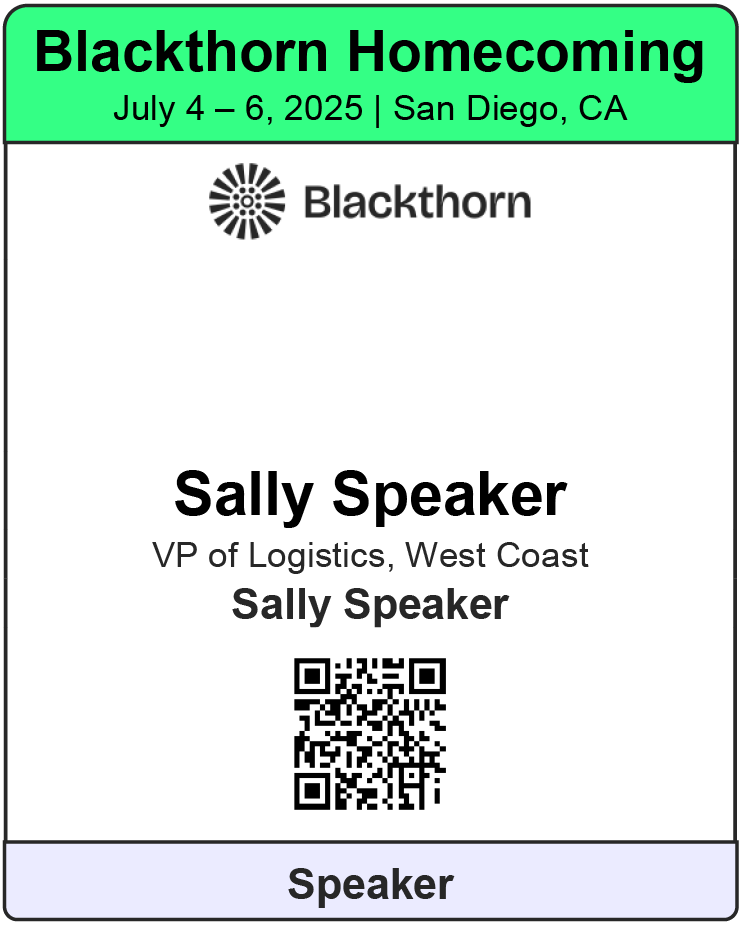
Back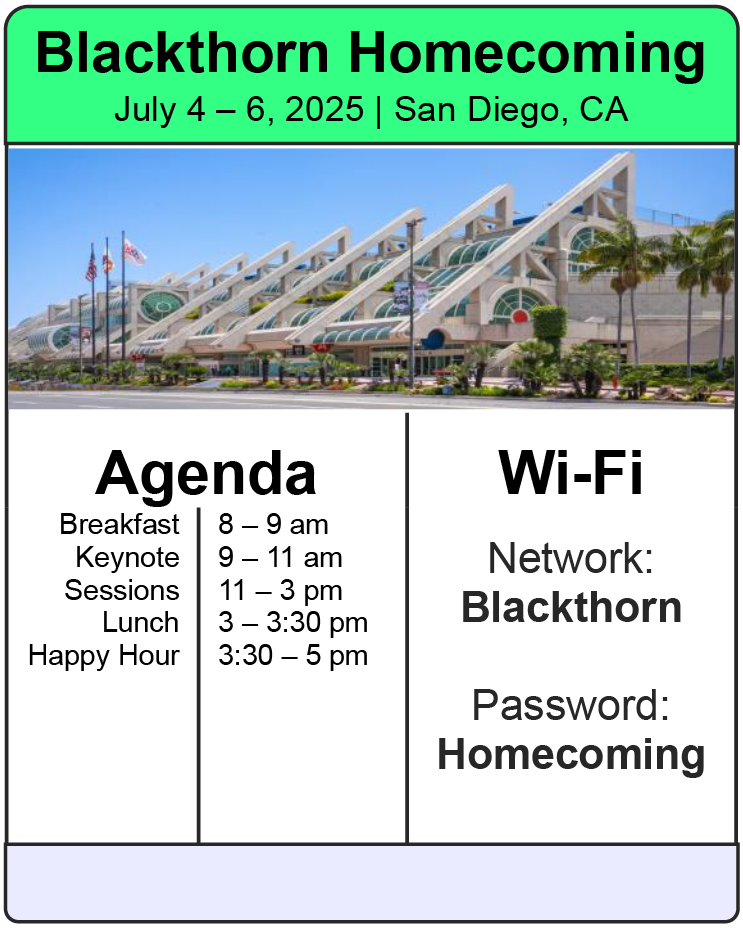
4” x 3”
There are six, double-sided, 4” x 3” templates. One for each of the roles: Attendee, Speaker, Sponsor, Staff, VIP, and Volunteer.
Front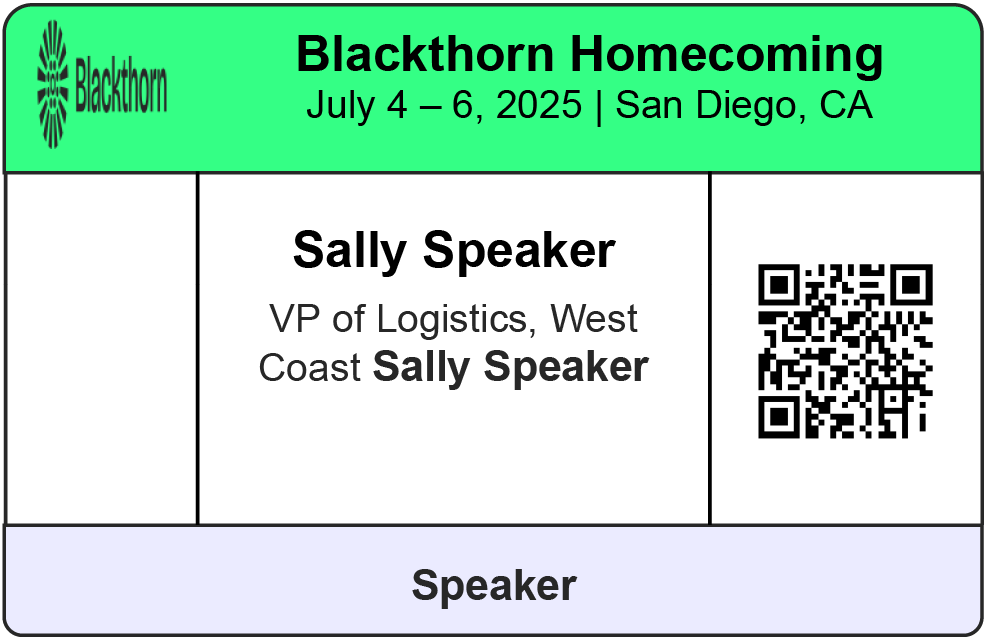
Back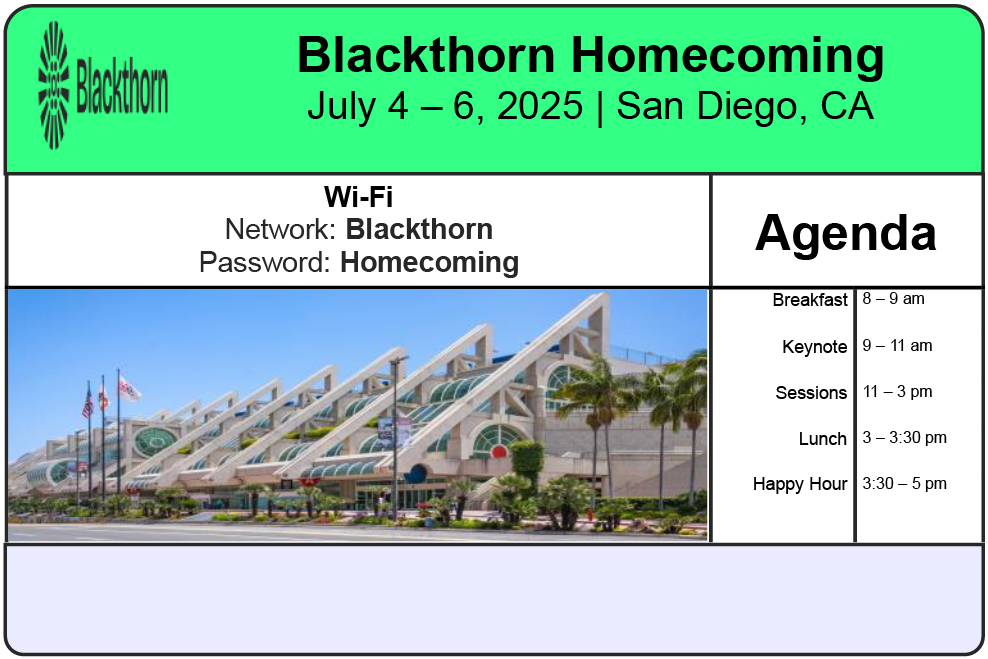
4” x 6”
There are six, double-sided, 4” x 6” templates. One for each of the roles: Attendee, Speaker, Sponsor, Staff, VIP, and Volunteer.
Front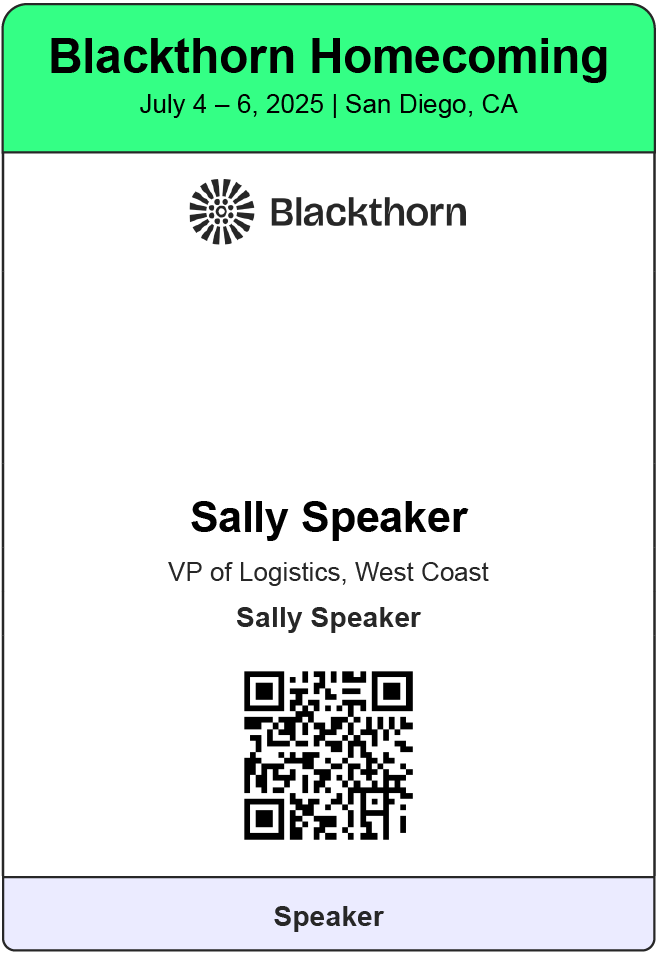
Back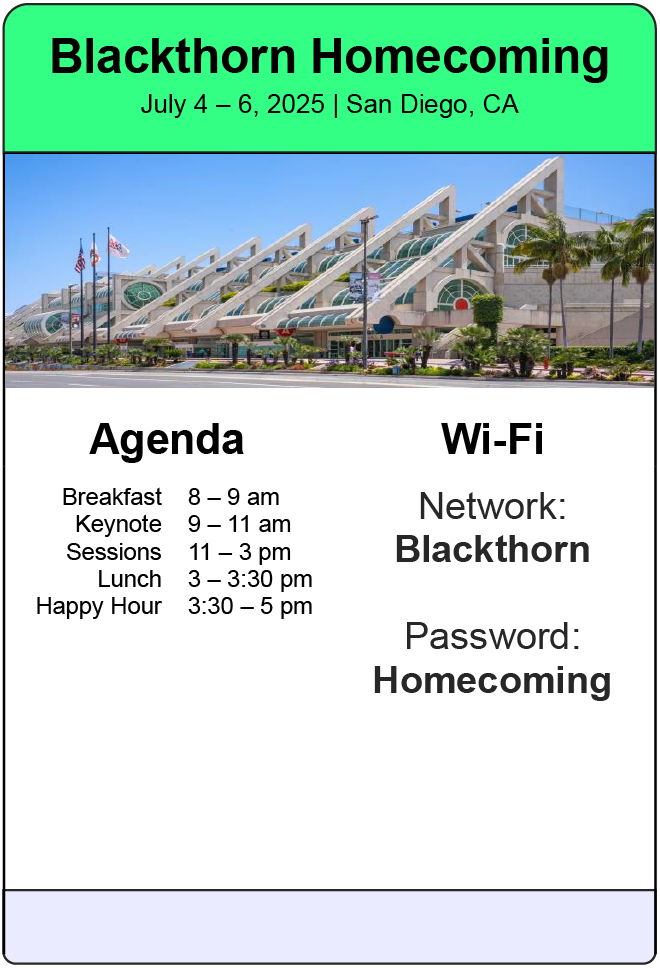
Edit a Template
Important Requirement
Due to the template generation logic, the Attendee record’s Event Role field must remain in the template.
DocGen Packages Tab
DocGen Packages contain information about the package and one or more templates.
Tab: Data
The Data tab includes information about the DocGen Package, including its name, type, and starting object.
Tab: Documents
The Documents tab includes the templates that are part of the DocGen Package. A DocGen Package can include one or more templates.
Tab: Delivery
The Delivery tab includes information about the output document (PDF with generated badges). The output document can include one or more templates that are either combined or generated separately.
Click here for instructions to rename the output file.
Update a Tag
Tags hold information in a template. For example, "<<Attendee_Event>>" is a tag that pulls the Event Name from the Event record that is related to the Attendee’s record. The information the tag pulls then appears on a badge.
Use the following steps to change which tag appears or to change the formatting for the information in the tag.
Open a DocGen Package record that includes the template you want to modify.
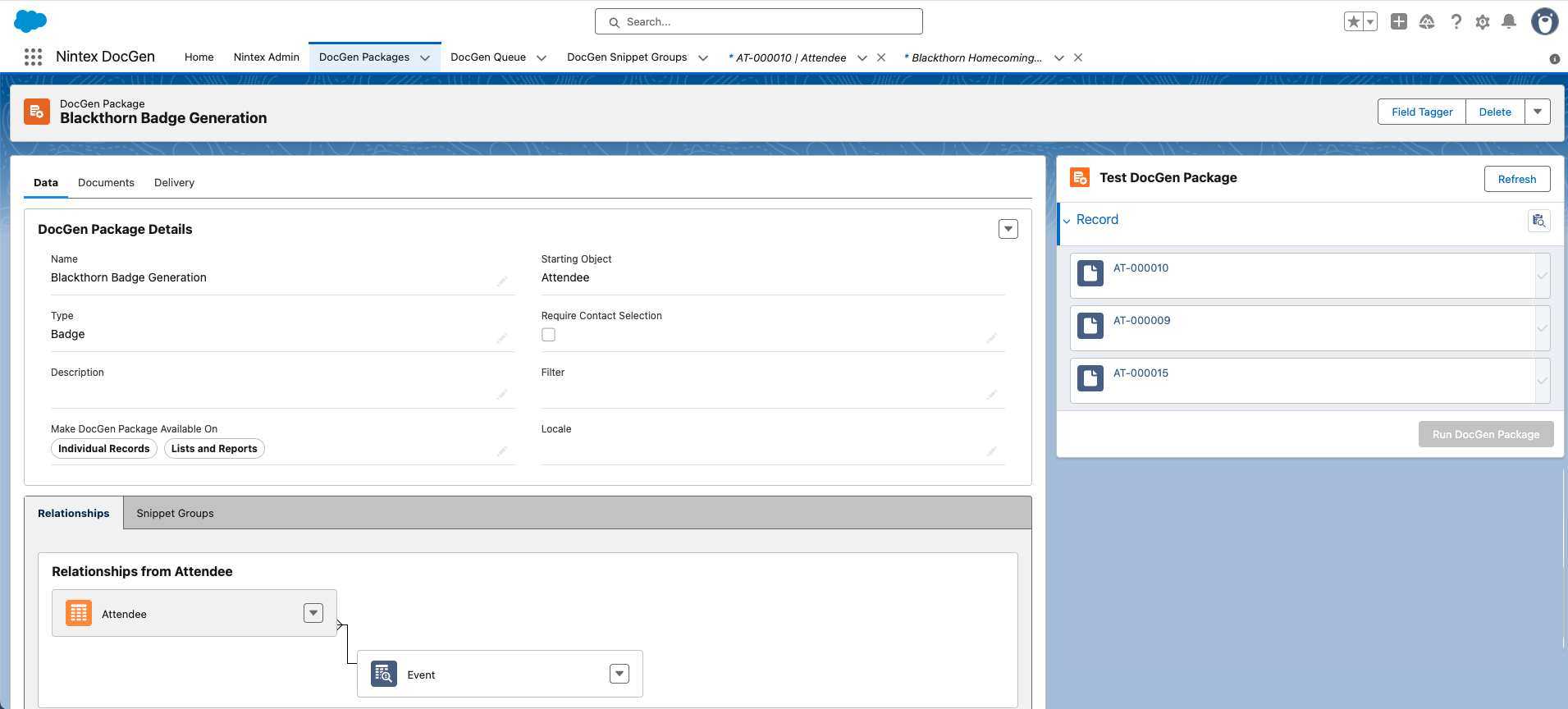
Open the Word document for that template.
Click the Field Tagger button on the DocGen Package record.
Select Word/PowerPoint Tags.
Select an object from the Relationship section or a section under Generic Data.
Select a field and click the Copy icon. Paste the field into the Word doc. Some fields offer different formatting options, such as for an Event’s date formatting. If you change the formatting for a field that is already in the Word doc, the tag will update automatically to reflect the new format.
Save the Word document.
Upload the saved file to Salesforce to replace the previous version. Any changes made to the document will impact the badges related to the Word file.
Change Colors and Fonts on a Template
To change the font, font size, or colors included in a template, open the Word file, make the changes as you would change a traditional Word document, and save the file.